Not too long ago, I started building my first Microsoft Copilot Cowork plugin, and I found that the first prerequisite is that the system I want Cowork to connect to must have an MCP server on top of it. So, that took me down the rabbit hole to understand what MCP is and how to build an MCP server.
In this series, we’ll start with an intro to MCP and MCP servers, then we’ll get into how to design an MCP server, build and test one, deploy it to Azure, and end with connecting it to Copilot Cowork, Claude and ChatGPT with a plugin for each.
Throughout the series, I’ll use one simple example: the YEG & Tell Library, a fictional library with an SQL database of books. And since MCP is still evolving, everything here reflects the current version of the specification, 2026-07-28.
In this post
What is MCP?
MCP (Model Context Protocol) is a universal connector between AI apps and other systems. It lets an AI app like Claude, ChatGPT or Copilot look things up and get things done in those systems, without every AI app needing its own custom integration.
On its own, an AI model only knows what it learned in training and what you type into it. It can’t read your email or check whether a book is available at the library. MCP gives the AI app a standard way to plug into those systems.
A popular way to describe MCP is USB-C for AI. Think of your system as a device with one standard USB-C port: any accessory with a USB-C plug can connect to it, instead of the device needing a different port for each accessory. Your system’s MCP server is that USB-C port, and the AI apps are the accessories that plug into it. For example, Microsoft’s Work IQ MCP server gives AI apps access to your Outlook emails, and both a Copilot Studio agent and GitHub Copilot CLI can connect to it and work with the same inbox.
Who invented it, when and why?
MCP came out of Anthropic, the company behind Claude. Two Anthropic engineers, David Soria Parra and Justin Spahr-Summers, created it, and Anthropic released it as an open standard in November 2024.
The problem they were solving was simple. AI assistants were smart, but cut off from the files, databases and business apps where people’s actual work lives. Every connection between an AI app and a system was a custom build, repeated for every combination of app and system. MCP turned that into a build-once standard.
Because it was open, it caught on fast. Through 2025, OpenAI, Google and Microsoft added MCP support to their products, which is why it works today in ChatGPT, Gemini, VS Code and Microsoft 365 Copilot. In December 2025, Anthropic donated MCP to the Agentic AI Foundation under the Linux Foundation, so it’s now a neutral, industry-wide standard rather than something one company owns.
Why do AI apps need MCP servers? Can’t they just connect directly to the required system’s API?
This was my first question. For Copilot Studio agents, I’m used to using a Power Automate flow to connect to the system’s API, get the data, then pass it to the agent to reason on it.
The short answer: they can, but there’s a catch.
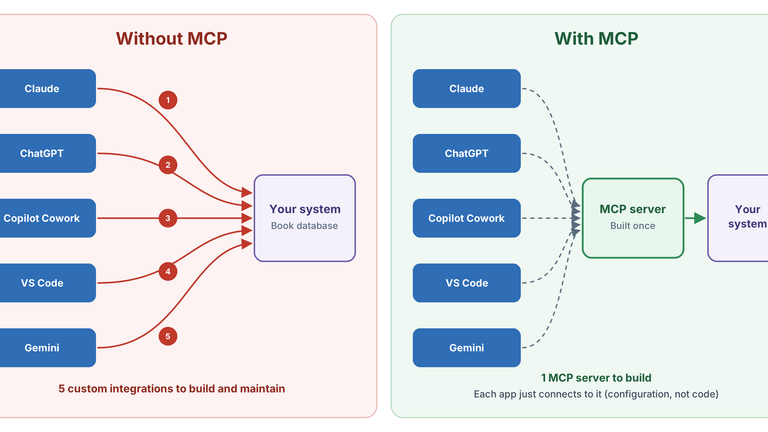
Say you have 5 AI apps that need to connect to your system:
- Without an MCP server, you build the connection logic 5 times, once for each AI app, including how each one signs in. And every time your system changes, say a new API endpoint is added, you update it 5 times.
- With an MCP server, you build the server once, and all 5 apps connect to it, as long as they’re MCP-capable. Each app needs a one-time setup, but that’s configuration, not code.

On top of saving you from building the same thing 5 times, an MCP server gives you:
- A model-friendly menu. APIs are built for developers, with dozens of endpoints and big payloads. An MCP server offers a short list of clearly described actions, like
search_books(genre), that the model can actually use well. - One place for security. Sign-in, permissions, and which operations are allowed at all, all handled in the server.
And what if your system doesn’t have an API at all, like a database or files on someone’s computer? There’s nothing for the AI app to call. An MCP server solves that too: it runs where the data lives and becomes the way in. A server inside your network can query an on-prem database directly (cloud apps like Copilot Cowork would reach it through a secure HTTPS endpoint), and a local MCP server can read files on your computer. YEG & Tell’s book database is this case too: it’s an Azure SQL database with no API, just tables, and the MCP server turns each request into a safe query.
To be fair, if only one AI app will ever use your system, connecting directly to the API can be simpler. More on that at the end.
What is the architecture of MCP?
Once I got past the “why”, the next step was understanding the moving parts. There are three:
- MCP host: the AI app you work in, such as VS Code or Copilot Cowork.
- MCP client: a component built into the host that keeps a connection to one MCP server. The host runs one client for each server it connects to.
- MCP server: a program that sits on top of your system and exposes what it can do to the host, through the client. The Microsoft Learn MCP server is a good example.
One client per server: configuration, not code
When I first read “the host creates one client per server”, I wondered if the host’s developers had to write a client for every server. That didn’t make sense to me, and it turns out it’s not the case.
The host’s developers write the client code once. When you add a server, for example by adding a plugin in Copilot Cowork or a settings entry in VS Code, the host starts a new copy of its built-in client and points it at that server. It’s like browser tabs: one browser, a separate tab for each website.
So the only part you build for your system is the server. Let’s look at that next.
What is an MCP server?
An MCP server is a program that sits on top of a system and exposes some of what that system can do to AI apps, in a standard way. The system can have an API, or it can be a database, like YEG & Tell’s SQL database of books. The server decides what the AI app is allowed to do, and translates each request into an API call or a query.
Servers come in two flavours:
- Local: runs on the same computer as the AI app, which launches it and talks to it directly. Handy for things like reading files on your machine, but only AI apps that run on your computer, like VS Code, can use it.
- Remote: runs on a web server, and AI apps connect to it over the internet, usually after you sign in. This is how business systems are typically exposed, and it’s the only kind Copilot Cowork supports.
The Microsoft Learn MCP server is a remote one. It’s free, needs no sign-in, and lives at https://learn.microsoft.com/api/mcp.
What are the core features of an MCP server?
An MCP server can offer three things: tools, resources and prompts. Here’s a summary of each one.
| Feature | What it is | Who decides when it’s used | YEG & Tell example |
|---|---|---|---|
| Tools | Actions the model can call | The model | search_books, reserve_book |
| Resources | Read-only content the server already has | The AI app or the user | PDF describing the summer reading program |
| Prompts | Ready-made instruction templates | The user | “Recommend books” template |
Tools
Tools are actions the model can call. Each tool has a name, a description and a list of inputs. The model reads the descriptions and decides on its own which tool to call, so a clear description matters a lot. For actions that change data, like reserve_book, the server can mark the tool as one that changes data. Some AI apps, like Copilot Cowork, then ask you to approve the call first. Not all do: when I tested in VS Code for Part 3, the Codex agent reserved a book without asking, and the Claude agent asked even before a simple search.
Resources
Resources are read-only content the server already has, like the PDF describing YEG & Tell’s summer reading program. I got this one wrong at first: I thought the user attaches the PDF. Actually, the server offers it, the AI app lists it in a menu, and you pick it (or the app adds it automatically). Either way, you never upload anything.
Prompts
Prompts are ready-made templates you choose to run, often as slash commands. For example, a recommend_books prompt asks you for a genre and a reading level, then hands the model well-written instructions so you don’t have to write them yourself.
In practice, tools do most of the work. Virtually every MCP-capable AI app supports them, while support for resources and prompts is patchy. That’s why many servers expose tools only, for example a
get_program_infotool instead of a program PDF resource.
How do the MCP client and server talk to each other?
MCP splits this into two layers: what the messages say, and how they travel.
What the messages say: JSON-RPC
RPC stands for Remote Procedure Call, a way for one program to call a function that runs in another program as if it were local. JSON-RPC is a version of that where every message is written in JSON. A message is one of three kinds:
- Request: asks the other side to run something, and has an id.
- Response: the answer to a request, carrying the same id.
- Notification: a heads-up with no id and no reply expected, like “my list of tools changed”.
Here’s a simplified call to the YEG & Tell server:
// Client -> Server (request)
{ "jsonrpc": "2.0", "id": 1, "method": "tools/call",
  "params": { "name": "search_books", "arguments": { "genre": "self-help" } } }

// Server -> Client (response)
{ "jsonrpc": "2.0", "id": 1,
  "result": { "content": [ { "type": "text", "text": "[{\"title\": \"Dopamine Detox\", ...}]" } ] } }
The same pattern covers everything else: tools/list, resources/list and prompts/list to see what a server offers, and resources/read and prompts/get to use them. A client can also start with server/discover to find out which features and protocol versions the server supports.
If you read older MCP material, you’ll see every connection start with an initialize handshake. Since the 2026-07-28 version, MCP is stateless: each request carries everything the server needs. Many apps still use the older versions, and the SDKs handle both, so you rarely have to think about it.
How the messages travel: stdio and Streamable HTTP
- stdio for local servers: the AI app starts the server on the same computer, and they exchange messages directly, with no network involved.
- Streamable HTTP for remote servers: messages go over HTTP (HTTPS in production), and MCP recommends OAuth for signing users in.
Putting it all together

Here’s what happens when someone asks the AI app, “Do you have any self-help books available?” The numbers match the orange markers in the diagram:
- The model looks at the tools from all connected servers and picks
search_booksfrom the Library server. - The host hands the call to the client connected to the Library server.
- The client sends a
tools/callrequest over Streamable HTTP. - The Library server queries the book database and returns the results.
- The results travel back through the client to the model, which writes the answer.
When to build an MCP server?
Coming back to where I started: when should you build one?
Build an MCP server when more than one AI app needs to use your system, and you want to build and maintain that connection once, with one place to control who can do what.
You also need one when the AI app you’re connecting can only reach outside systems through MCP. That was my case: Copilot Cowork couldn’t connect to my system through its API, so the plugin I was building needed an MCP server.
Before you start building, ask yourself:
- Will only one AI app ever use the system? Then a direct integration in that app might be simpler, as long as the app supports one. Copilot Cowork, for example, doesn’t at the time of writing this post.
- Does an MCP server for the system already exist? Many vendors now publish their own. If so, use it instead of building yours.
- Is the platform’s own connector enough? In Copilot Studio, for example, a Power Platform custom connector may already do the job.
What’s next
In the next post, we’ll look at how to design an MCP server’s tools, resources and prompts. In Part 3, we build and test the YEG & Tell MCP server. In Part 4, we’ll deploy it to Azure and add sign-in, and in Parts 5 to 7, we’ll connect it to Copilot Cowork, Claude and ChatGPT, each with its own plugin. You can follow the whole series on the MCP series page.
Get the next part by email
New posts in the MCP series and on AI, agents and Power Platform, straight to your inbox. No spam, unsubscribe anytime.
Sources and further reading
- MCP architecture overview
- Understanding MCP servers
- Anthropic: Donating MCP and establishing the Agentic AI Foundation
- Microsoft Learn MCP server
- Microsoft: Build plugins for Copilot Cowork
- Microsoft Learn: Work IQ MCP overview
A note on how this post was written: the experience, examples and voice are mine. The writing was enhanced with the help of AI.

Leave a Reply