This series started with a Copilot Cowork plugin. I was building one and found that, to reach the data it needed, Cowork expected an MCP server. The YEG & Tell Library, a fictional library, now has one: it runs in Azure and signs people in with Microsoft Entra ID (Part 4).
In this post, I turn that server into a Copilot Cowork plugin: the skills, the sign-in, the package, and what happened when I tested it. Claude and ChatGPT come in Parts 6 and 7.
The full code is in a private GitHub repo; if you’d like access, reach out to me on LinkedIn.
TL;DR
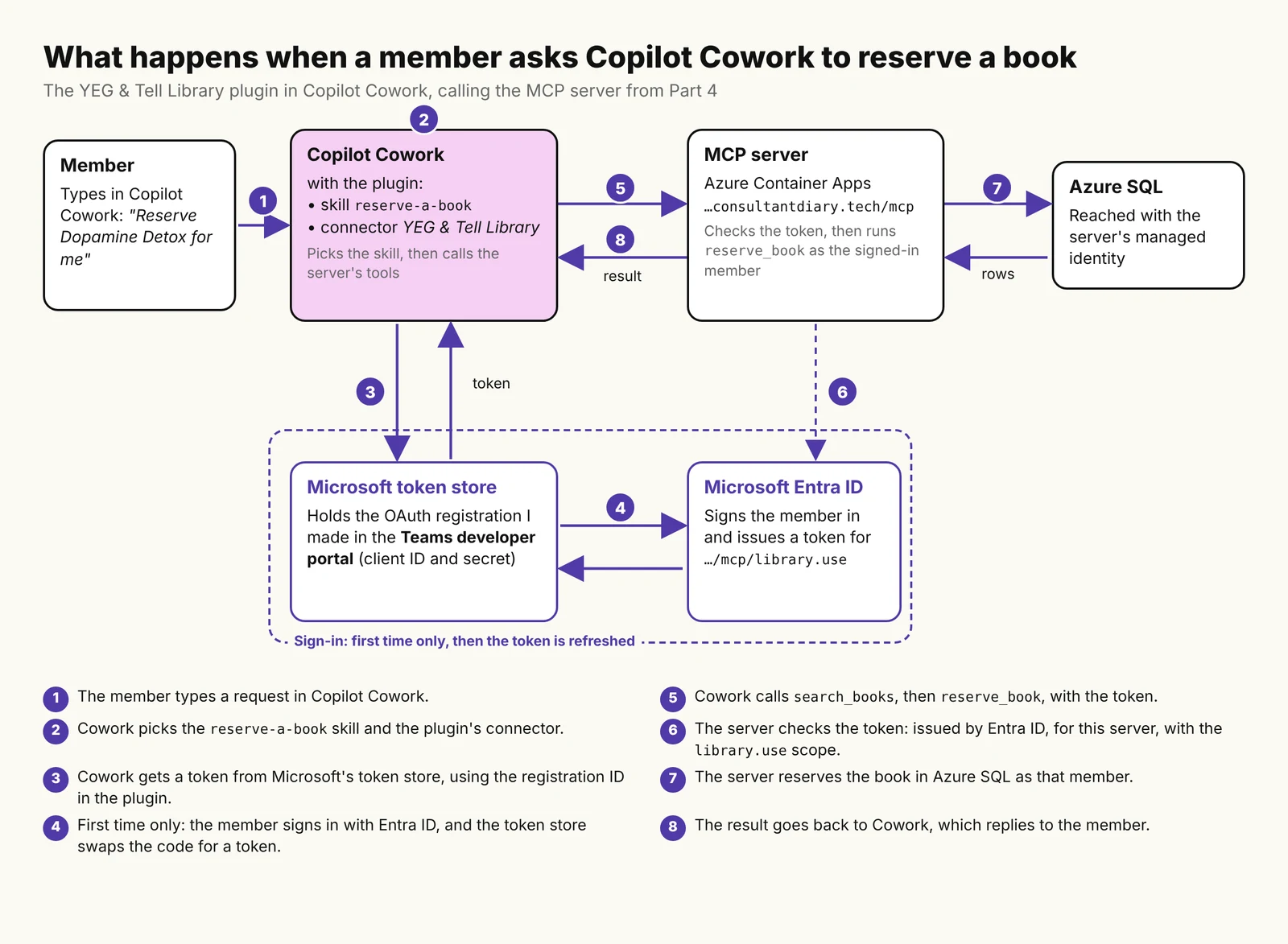
A Copilot Cowork plugin is a .zip with a manifest, skills and a connector that points at your MCP server. Cowork finds the tools itself.
With Entra ID sign-in, you register the plugin twice: as an app in Entra ID, and as an OAuth client in the Teams developer portal. The registration ID goes in the manifest.
Skills tell the model how to use the tools. Cowork’s docs don’t list MCP prompts or resources, so I covered those with skills too.
Gotcha: a cold start (the server and a paused database) was too slow for Cowork’s first call.
manifest.json, which lists the skills and the connector
skills: one folder each, with a SKILL.md file of instructions for the model
a connector: your MCP server’s URL and how to sign in to it
You don’t describe the tools. The Manage plugins page says Cowork “calls initialize and tools/list at runtime to discover available tools automatically”. The same page lists what Cowork supports from MCP: the tool calls and authentication. Prompts and resources aren’t on the list, so I didn’t count on the server’s recommend_books prompt or its two resources reaching Cowork.
Figure 1: What happens when a member asks Copilot Cowork to reserve a book.
Step 1: Write the skills
Cowork can call the four tools without skills. The skills are where I tell the model how the library works. I wrote one per job a member would ask for:
Skill
What it covers
Tools it uses
find-a-book
Searching the catalogue, one book’s details
search_books, get_book_details
reserve-a-book
Finding the right book and reserving it
search_books, get_book_details, reserve_book
check-my-loans
Loans, due dates, late books
get_my_loans
recommend-books
Five available books for a genre and reading level
search_books, get_book_details
library-info
Loan period, limits, late fees, programs
None
The model reads each skill’s description to decide when to use it, so I put the phrases a member would type in it. The name must match the folder name. This is the top of reserve-a-book:
---
name: reserve-a-book
description: |
  Reserves a book for the signed-in library member.
  Use when the member says "reserve Dopamine Detox for me", "put a hold on this
  book", "I want to borrow this one", or "book it for me", including after a
  search or a recommendation.
---
Two of the skills cover what Cowork may not read from the server. recommend-books does the job of the recommend_books prompt from Part 3, and library-info carries a copy of the borrowing policy and programs, which the server publishes as resources. The catch with the copy is that it can go out of date.
Writing the skills also showed me a gap: no tool lists or cancels a reservation. A skill can’t add a tool, so the skills tell the model to say so instead of promising it.
Step 2: Set up sign-in
The connector doesn’t hold any credentials. It holds the ID of an “auth config” that Microsoft keeps in its token store. Microsoft’s OAuth 2.0 page is clear about Entra ID: “Dynamic client registration isn’t available”, and “The agentConnectors node has no Microsoft Entra authorization type.” So, as in Part 4, the client has to be registered up front, in two places.
In Entra ID
A new app registration for Cowork, single tenant, with a Web redirect URI: https://teams.microsoft.com/api/platform/v1.0/oAuthRedirect
The delegated library.use permission of the server’s app registration
On the server’s app registration, the new app added as an authorized client, as I did for VS Code in Part 4, so members aren’t asked to consent
Any Teams app: Microsoft warns that if you bind the registration to one app, “every tool call returns a 404 error”.
PKCE: Microsoft’s page says “It’s on by default”. On my form it was off, so check it.
The registration ID you get after saving goes in the manifest. When I decoded mine, it held my tenant ID, so I keep the built package out of the repo.
Step 3: Build the package and upload it
I wrote the skills in a folder laid out as a Claude Code plugin, because I’ll need that in Part 6. The Microsoft 365 Agents Toolkit CLI (version 1.1.18 in my case) turns it into a Cowork package:
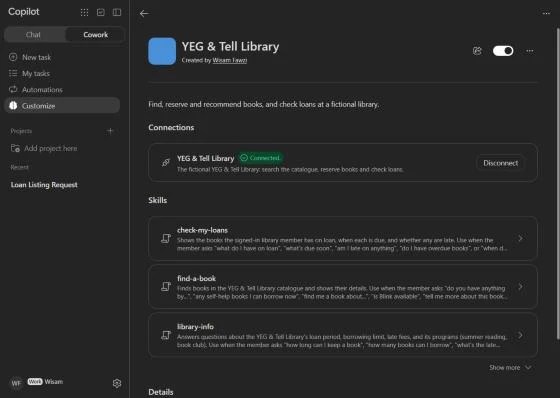
Then atk package builds the .zip. To upload it, Microsoft’s docs point to a Plugins tab with Add plugin. My Cowork had Customize > Add > Upload instead. After the upload, I selected the connector, signed in, and it showed Connected.
Figure 2: The plugin in Copilot Cowork, connected, with its skills.
What testing showed
The first call failed on a cold start
My first question, “list my loans”, picked the right skill, but Cowork said the plugin “couldn’t be reached”. The server’s log in the Azure portal showed why. The container was starting from zero, Cowork’s token was valid, and then the first database call failed with TaskCanceledException: A task was canceled. while the database woke up from auto-pause.
Figure 3: The server’s log: a cold start, a valid token, then a cancelled database call (IDs hidden).
As I wrote in Part 4, the server checks the member on every request, so the first request of any kind wakes the database. Part 4 measured about 27 seconds for the container alone, and Microsoft asks for “Less than 30 seconds per tool call”. Three minutes later, with both awake, the same question worked in 310 ms. The same thing happened when I came back later to test a reservation: the first try failed, and the second one, a minute later, worked.
The test questions
I asked each question in a new chat, signed in as myself. Cowork shows which skill and tools it used, but not the arguments, and my server doesn’t log them.
Question
What Cowork used
Reply (quoted)
Result
“What do I have on loan?”
check-my-loans; Get my loans
“you don’t have any books on loan”
Pass
“Any self-help books I can borrow now?”
find-a-book; Search books
“There are 10 self-help books you can borrow right now”
Pass
“Show me self-hlep books”
find-a-book; one Search books call
“Showing 10 of 16”. It fixed the typo itself, as the skill says.
Pass
“What’s the late fee?”
library-info; no tool
“$0.25 a day for each book, up to a maximum of $5 per book”
Pass
“recommend kids books”
recommend-books; Search books; Get book details
“The library has only four children’s books available”
Partly
“Reserve Outliers by Malcolm Gladwell for me.”
reserve-a-book; Search books; Reserve a book (after my approval)
“I’ve reserved Outliers by Malcolm Gladwell (book 19) for you.”
Pass
“What books do I have reserved?”
Two steps; the reply says it checked my loans
“I can’t see your reservations” … “check your account on the library’s website”
Partly
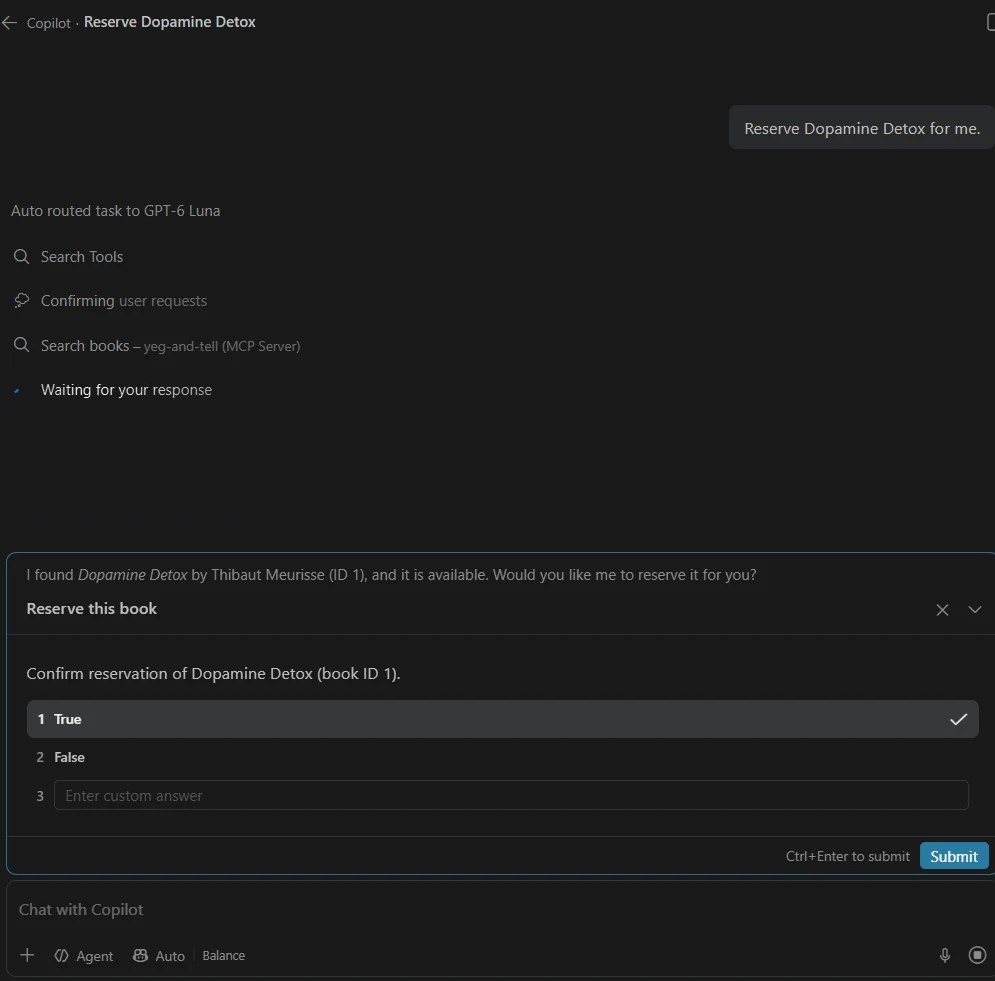
For the reservation, Cowork asked me once, with its own approval card. The card shows the tool’s title from Part 2, “Reserve a book”, and the book ID. Microsoft says this confirmation comes from the tool’s annotations, and that for non-Microsoft MCP servers it “is being rolled out progressively”; in my tenant, it was already there. The model didn’t ask me first, which is what the skill says to do when the member names one book. It also didn’t make up pickup details: “The library system didn’t give any pickup details, so check with library staff”.
Figure 4: Cowork asks once before running reserve_book.
The late fee is a good example of a skill helping. In Part 3, Claude couldn’t answer it unless I attached the policy resource. Here, library-info answered from its copy with no tool call.
The two misses are worth knowing. “recommend kids books” returned only the four books in the childrengenre. The catalogue also has six children’s fiction books (age group Children), and none came up. I can’t see the arguments, but those four books point to a genre search. And for reservations, the model said it can’t see them, as the skill asks, then suggested a library website that doesn’t exist.
Figure 5: “recommend kids books” found the four books in the children genre and missed six children’s fiction books.
What’s next
In Part 6, we connect the same server to Claude. The plugin folder from this post is already a Claude Code plugin, so the main work is another client registration in Entra ID. You can follow the series on the MCP series page.
In Part 3, the YEG & Tell Library’s MCP server ran locally and signed everyone in as a test member. That was fine for testing, but no AI app outside my computer could reach it, and every reservation went to the same member.
In this post, we put the server online in Azure and replace the test member with a real sign-in through Microsoft Entra ID, so each person who signs in gets their own library membership. I test it with the MCP Inspector and GitHub Copilot in VS Code. Connecting it to Copilot Cowork, Claude and ChatGPT comes in Parts 5 to 7.
The snippets in this post cover the important parts. The full code is in a private GitHub repo; if you’d like access, reach out to me on LinkedIn.
TL;DR
The setup: Azure Container Apps for the server, Microsoft Entra ID for sign-in, and Azure SQL reached with the server’s managed identity, so there’s no database password.
The server checks sign-in itself: the MCP C# SDK tells the AI app where to sign in, and Microsoft.Identity.Web checks the token it comes back with.
Gotchas:
The Application ID URI must match the exact address clients use, including /mcp. Set the app registration to v2 tokens first.
Use the oid claim to identify the member. The default user ID (sub) is different for every app.
Entra ID only works with pre-registered clients, so every AI app has to be set up for it, even the MCP Inspector.
The tools don’t change. What changes is where the server runs and who it thinks you are:
Piece
Part 3
Part 4
Server
Runs locally at localhost:5050
Azure Container Apps at https://mcp.consultantdiary.tech/mcp
Sign-in
A development stand-in signs everyone in as test-member
Microsoft Entra ID. Each person signs in as themselves
Library member
The seed test member
Created the first time someone signs in
Database access
My own Azure sign-in
The server’s managed identity, with only the permissions it needs
How sign-in works with MCP
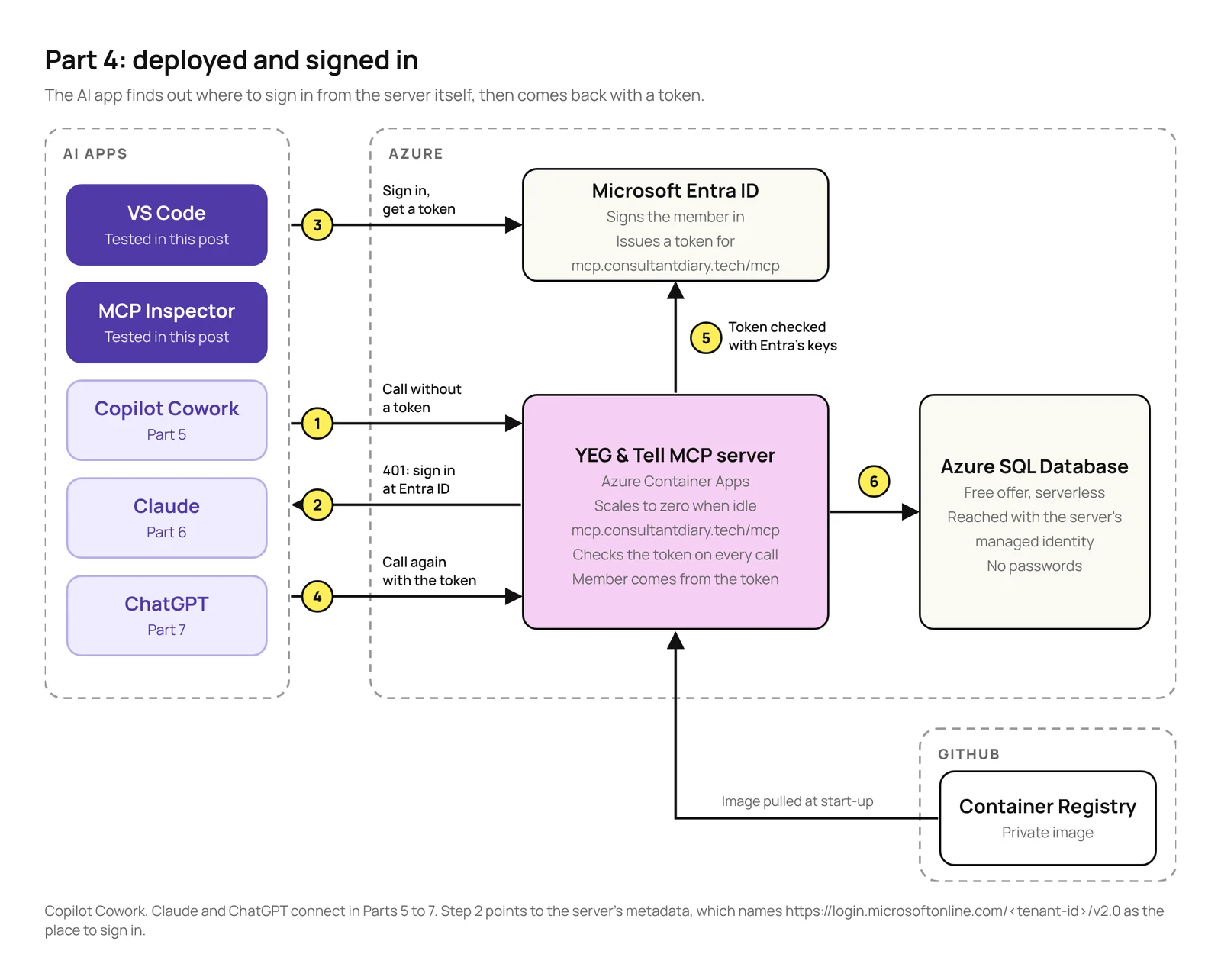
The MCP specification treats a protected MCP server as an OAuth resource server. The server doesn’t sign anyone in itself. It only says where to sign in, and then checks the token that comes back:
The AI app calls the server without a token and gets a 401, with a pointer to the server’s Protected Resource Metadata. The spec says a server “MUST implement” it.
That metadata names the server’s address (the resource), the authorization server (Entra ID) and the scope to ask for.
The AI app signs the user in with Entra ID and asks for a token for that resource.
The AI app calls the server again with the token. The server checks that the token is valid and was issued for this server, and then runs the tool.
Figure 1: How an AI app signs in and calls the server in Azure.
The token only lets the AI app call the server. The server never passes it on: it reaches the database with its own managed identity (step 6), and uses the member ID from the token in its own queries. That’s also what the spec asks for: an MCP server “MUST NOT accept or transit any other tokens”.
The spec gives AI apps three ways to register with the authorization server. Entra ID only supports one of them: pre-registration. So every AI app that connects has to be set up in Entra ID first. For this post, that’s VS Code and the MCP Inspector.
What you need
Everything from Part 3, plus:
What
Version I used
Why
Microsoft.Identity.Web
4.16.1
Checks the Entra ID token.
MCP C# SDK (ModelContextProtocol.AspNetCore)
2.2.0
Serves the metadata and the 401.
Azure CLI and its containerapp extension
2.90 and 1.3.0b5
To create the container app.
MCP Inspector
2.13.0
To test the sign-in directly.
A domain you can add DNS records to
For the server’s address and its free certificate.
A GitHub account
To store the container image.
The server runs on the Azure Container Apps Consumption plan, which has a monthly free grant of 180,000 vCPU-seconds, 360,000 GiB-seconds and 2 million requests, and no compute charges while the app has scaled to zero. GitHub says container image storage is currently free.
When I checked Azure Cost Management on October 31, the resource group showed CA$0.00 for October, with the database on the free offer. The container app was created that same day, and its usage hadn’t shown up in Cost Management yet.
Create an app registration for the server, single tenant.
Set the token version to 2 in the manifest (api.requestedAccessTokenVersion). Microsoft calls this “the step that most people miss”. Without it, you can’t set an https Application ID URI.
Set the Application ID URI to the server’s exact address, https://mcp.consultantdiary.tech/mcp, with no trailing slash.
Add a scope named library.use. The full scope name becomes https://mcp.consultantdiary.tech/mcp/library.use.
Pre-authorize VS Code under Authorized client applications, using the client ID from Microsoft’s App Service MCP guide, aebc6443-996d-45c2-90f0-388ff96faa56.
Note that the address includes /mcp. RFC 9728 says the resource in the metadata “MUST be identical to the URL that the client used to make the request”, and clients connect to .../mcp, not the root. If the Application ID URI doesn’t match the resource the client sends, Entra ID refuses the token with AADSTS9010010.
I expected to have to verify consultantdiary.tech in my Entra tenant before Entra ID would accept that URI. It accepted it without that, and real sign-ins got tokens. Microsoft’s identifier URI documentation says a verified domain “may still be required” for https URIs, so this may not work the same in every tenant.
Figure 2: The server’s app registration: the Application ID URI, the library.use scope and VS Code as an authorized client.
A second app registration for the Inspector
The MCP Inspector needs its own client app. If the client and the server are the same app registration, Entra ID refuses token refreshes with AADSTS90009, which the Inspector’s own code warns about. I created a second app registration as a public client (Mobile and desktop), gave it the library.use permission, and registered its redirect URI.
The redirect URI caught me out. The Inspector’s docs give http://localhost:6274/oauth/callback, but it opened in my browser at 127.0.0.1, and the redirect follows the address bar. The first sign-in failed with:
AADSTS50011: The redirect URI 'http://127.0.0.1:6274/oauth/callback' specified in the
request does not match the redirect URIs configured for the application '<inspector-client-id>'.
Registering both http://localhost:6274/oauth/callback and http://127.0.0.1:6274/oauth/callback fixed it.
Step 2: Add sign-in to the server
I kept the sign-in check in the code rather than in an Azure feature, so it works on any host and you can see it. It needs one new package:
dotnet add package Microsoft.Identity.Web
Two pieces do the work. The MCP C# SDK’s AddMcp serves the Protected Resource Metadata and writes the 401. It doesn’t check tokens. Microsoft.Identity.Web does that, and it’s Microsoft’s recommended library for this in ASP.NET Core. This is the new part of Program.cs:
// The server's address. Clients send it as the OAuth "resource", and it's the
// Application ID URI of the app registration in Microsoft Entra ID.
var resource = builder.Configuration["McpResource"]!;
var tenantId = builder.Configuration["AzureAd:TenantId"];

builder.Services.AddAuthentication(options =>
    {
        options.DefaultAuthenticateScheme = JwtBearerDefaults.AuthenticationScheme;
        options.DefaultChallengeScheme = McpAuthenticationDefaults.AuthenticationScheme;
    })
    // Serves the Protected Resource Metadata and the 401 that points to it.
    .AddMcp(options => options.ResourceMetadata = new()
    {
        Resource = resource,
        AuthorizationServers = { $"https://login.microsoftonline.com/{tenantId}/v2.0" },
        ScopesSupported = [$"{resource}/library.use"],
    })
    // Validates the Entra ID access token: signature, issuer, audience, expiry.
    .AddMicrosoftIdentityWebApi(
        jwt => jwt.Events = new() { OnTokenValidated = SignInMemberAsync },
        entra => builder.Configuration.Bind("AzureAd", entra));

builder.Services.AddAuthorization();
The authorization server is the v2.0 issuer, which Microsoft’s MCP guide requires. Then the MCP endpoint requires a token with the library.use scope:
The two Use lines are easy to leave out, because ASP.NET Core adds them for you. But it adds them at the start of the pipeline, before Part 3’s development stand-in, so every local request got a 401. Calling them after the stand-in fixes it. The stand-in still runs in Development only, and now also adds the library.use scope so it passes the same check.
Which ID is the member?
Part 2’s tools read the member from ClaimTypes.NameIdentifier. With an Entra ID token, that claim holds sub by default, and sub is different for every app the user signs in to. The ID that stays the same is the user’s object ID, oid. So once the token is validated, the server swaps it in and creates the member if it’s their first visit:
// Runs after the token is validated. The member ID is the user's Entra object ID
// ("oid"). It goes in ClaimTypes.NameIdentifier, where the tools read it.
static async Task SignInMemberAsync(TokenValidatedContext context)
{
    var user = context.Principal!;
    var objectId = user.GetObjectId();
    if (objectId is null)
    {
        context.Fail("The access token has no oid claim.");
        return;
    }

    var identity = (ClaimsIdentity)user.Identity!;
    identity.TryRemoveClaim(identity.FindFirst(ClaimTypes.NameIdentifier)); // "sub"
    identity.AddClaim(new Claim(ClaimTypes.NameIdentifier, objectId));

    // Members are created on first sign-in.
    var db = context.HttpContext.RequestServices.GetRequiredService<LibraryDb>();
    await db.EnsureMemberAsync(objectId, user.FindFirst("name")?.Value ?? "Library member",
        context.HttpContext.RequestAborted);
}
Because of that swap, the tool code from Part 2 didn’t change at all. EnsureMemberAsync is a single insert that only runs if the member doesn’t exist yet:
INSERT INTO dbo.Members (SignInId, DisplayName)
SELECT @signInId, @displayName
WHERE NOT EXISTS (SELECT 1 FROM dbo.Members WITH (UPDLOCK, HOLDLOCK)
                  WHERE SignInId = @signInId);
The server is stateless, so there’s no “session start” to hook into. This check runs on every request, including listing the tools. It’s a small indexed query, but it also means the first request of any kind wakes a paused database.
Step 3: Build and push the container image
Azure Container Apps doesn’t run your code directly. It runs a container image: a packaged copy of the server, with the compiled code and the .NET runtime it needs. The image lives in a container registry, and Container Apps downloads it from there when it starts the server.
Azure’s own registry, Azure Container Registry, has no free tier: the Basic tier is listed at about US$5 a month (US$0.17 a day in East US). GitHub says storage on its Container Registry is currently free. To keep the cost of this experiment close to $0, I used GitHub instead of Azure. GitHub also keeps the image private by default.
You don’t need Docker to build the image. dotnet publish builds it and pushes it to the registry:
Before pushing, I scanned the published files, and the Release build had my local folder path, including my Windows user name, inside the .dll and .pdb files. The .pdb also had the repo’s URL. In a public image, anyone could read them. Two settings in the project file fixed it:
<!-- Keep local file paths out of Release builds, and so out of the container image. -->
<PropertyGroup Condition="'$(Configuration)' == 'Release'">
  <DebugType>none</DebugType>
  <ContinuousIntegrationBuild>true</ContinuousIntegrationBuild>
</PropertyGroup>
I kept the image private anyway. GitHub notes that once a package is public, it can’t be made private again.
Step 4: Create the container app and connect the database
The app starts on a placeholder image, so its managed identity exists before I connect it to the database:
--min-replicas 0 lets the app scale to zero when nobody is using it, so it only uses the free grant when it’s called.
--logs-destination none skips the Log Analytics workspace, which would cost money.
There’s no password in the connection string. The app signs in to Azure SQL with its managed identity.
Azure Container Apps ends HTTPS at its own front door and passes requests on to the app. For the server to know the request came in over https, and put https addresses in its metadata, the project file sets an environment variable that tells ASP.NET Core to trust the forwarded headers:
The managed identity gets a database user with only the permissions the server needs:
IF DATABASE_PRINCIPAL_ID('$(AppName)') IS NULL
    CREATE USER [$(AppName)] FROM EXTERNAL PROVIDER;

-- Only what the server needs.
GRANT SELECT ON dbo.Books TO [$(AppName)];
GRANT UPDATE (Status) ON dbo.Books TO [$(AppName)];     -- reserve_book
GRANT SELECT ON dbo.Genres TO [$(AppName)];
GRANT SELECT, INSERT ON dbo.Members TO [$(AppName)];    -- created on first sign-in
GRANT SELECT ON dbo.Loans TO [$(AppName)];
GRANT INSERT ON dbo.Reservations TO [$(AppName)];       -- reserve_book
GRANT SELECT ON dbo.Policies TO [$(AppName)];
GRANT SELECT ON dbo.Programs TO [$(AppName)];
The app can change a book’s status, but nothing else about the book, and it can add members and reservations but not delete them.
The firewall trade-off
The database firewall only let in my own IP address. Container Apps’ outbound IP addresses can change, and a fixed one needs a NAT Gateway, which isn’t free. So I used Azure SQL’s “Allow Azure services” rule:
az sql server firewall-rule create --resource-group <resource-group> --server <server> `
    --name AllowAllWindowsAzureIps --start-ip-address 0.0.0.0 --end-ip-address 0.0.0.0
Microsoft is clear about what that means: it allows connections from “all Azure services, including services running in other customers’ subscriptions”. What protects the database is that it only accepts Microsoft Entra sign-ins, so a connection still needs an identity with access. I accepted that for this demo.
Step 5: Add the custom domain
I used a subdomain of my blog, mcp.consultantdiary.tech, because the Application ID URI has to match the server’s address, and Microsoft’s documented formats for https URIs use your own domain rather than Azure’s generated one. It also gives the plugins in Parts 5 to 7 an address that won’t change.
Container Apps gives every app an address under azurecontainerapps.io, and it gives custom domains a free managed certificate. I added two DNS records for mcp.consultantdiary.tech:
Type
Host
Value
CNAME
mcp
The app’s generated address
TXT
asuid.mcp
The app’s domain verification ID
Then I added the domain to the app and requested the certificate. It stayed pending for about four minutes before it was issued.
On my network, hostname bind kept failing with connection resets, so I ran the same two steps as direct az rest calls instead. That was my network, not Azure, but if the command keeps failing for you, that’s another way to do it.
Is it safe to publish the address?
I asked myself this before naming the domain in this post. The address is public anyway: every AI app that connects needs it, DNS records are public, and certificates for a domain are normally published in public Certificate Transparency logs. The server’s metadata is public too, by design, and it includes my tenant ID in the sign-in address.
Knowing the address doesn’t get anyone in. They still need a token for this server from my tenant, and the app registration is single tenant, so people outside it can’t get one. The real risk is cost: anyone can send requests that get a 401, and each one counts against the free grant and wakes the app. Max replicas is 1, so the compute is capped, and a budget alert in Azure Cost Management is a cheap way to catch it early.
Step 6: Test it
Without signing in
With no token, the server should answer 401 and point to its metadata. One surprise: GET /mcp returns 405 Method Not Allowed, because the server is stateless and only accepts POST. So test with POST:
curl.exe -i -X POST https://mcp.consultantdiary.tech/mcp -H "Content-Type: application/json" -d "{}"
The metadata it points to has the server’s address, Entra ID’s v2.0 issuer and the scope. The spec says the 401 SHOULD also include the scope. SDK 2.2.0 doesn’t add it, but the AI apps I tested used scopes_supported from the metadata instead, which is what the spec says to fall back to.
I also sent a valid Entra ID token that was issued for a different app, Azure Resource Manager. The server refused it with a 401, and the log showed why: IDX10214: Audience validation failed. The signature and expiry were fine; it just wasn’t a token for this server.
Signing in with the MCP Inspector
In the MCP Inspector, I added the server, entered the Inspector app’s client ID in its OAuth settings and selected Connect. After the redirect URI fix from Step 1, Entra ID asked me to pick an account, then showed two consent screens: one for the Inspector app and one for the server app. Because I’m an admin in the tenant, the second one also offered to consent for everyone in my organization:
Figure 3: The Inspector sends me to Entra ID to sign in (account, tenant and client IDs hidden).Figure 4: Consent for the Inspector to use the YEG & Tell library.Figure 5: Consent for the server app, with the option to consent for the whole organization.
After I accepted, the Inspector connected, and search_books returned Malcolm Gladwell’s books from the deployed server:
Figure 6: The Inspector connected to the deployed server.
In the database, a new row appeared in dbo.Members with my Entra object ID and my name from the token.
Figure 7: The member created on my first sign-in, with my Entra object ID (partly hidden).
That one result answered three questions at once: Entra ID issued a token for https://mcp.consultantdiary.tech/mcp, the token had the oid and name claims, and the managed identity could reach the database and write to it.
Signing in with GitHub Copilot in VS Code
In VS Code, I added the deployed server to .vscode/mcp.json, selected Start and signed in when asked:
These tests ran in the Local harness. “Reserve a self-help book for me” called search_books, then asked before running reserve_book, as in Part 3:
Figure 8: VS Code asks before reserving on the deployed server.
After I allowed it, the reservation went through as me, not as a test member. The new row in dbo.Reservations has my member ID:
Figure 9: Searching and reserving on the deployed server.
One thing I didn’t expect: I’d left the local server in mcp.json too. Both servers have the same tools, so the model tried the local one first, found it wasn’t running and fell back to the Azure one. If you test both, stop the one you’re not using.
Figure 10: The model tries the local server first, then uses the Azure one.
Errors I hit, and the fix for each
Error
Cause
Fix
AADSTS9010010
The Application ID URI doesn’t exactly match the resource the client sends
Use the exact address, including /mcp, with no trailing slash
AADSTS50011
The Inspector’s redirect URI isn’t registered
Register both localhost and 127.0.0.1
AADSTS90009
The client and the server are the same app registration
Give the Inspector its own app registration
401 for every local request
UseAuthentication() ran before the development stand-in
Call it explicitly, after the stand-in
401 with a valid token, IDX10214
The token was issued for a different app
Working as intended
405 on GET /mcp
The server is stateless and only accepts POST
Test with POST
What’s next
The server is online and knows who’s signed in. In Part 5, we connect it to Copilot Cowork with a plugin, which needs its own setup in Entra ID. You can follow the whole series on the MCP series page.
In Part 2, we designed an MCP server for the YEG & Tell Library, a fictional library with an Azure SQL database of books: four tools, two resources and a prompt. In this post, we build it in C# and test it locally, first with the MCP Inspector and then by chatting with it through GitHub Copilot in VS Code.
Testing also ended up changing the design. When I tested the prompt, it asked for something the database couldn’t answer, so I fixed the data and the tool, then tested again. I cover that near the end.
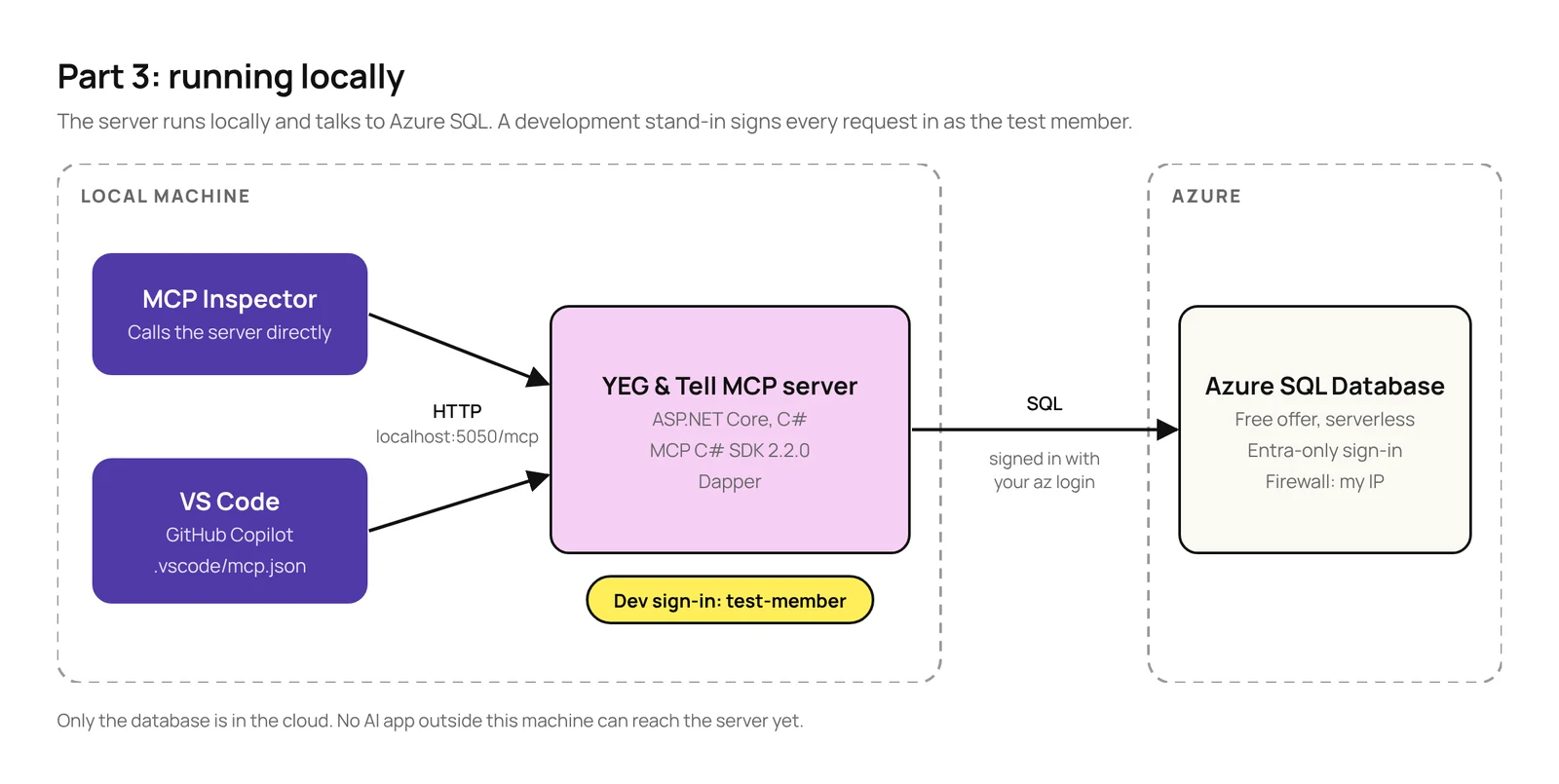
The database already lives in Azure, but the server itself runs locally for now, so only apps on the same machine can reach it. Moving the server to Azure and adding a proper sign-in come in Part 4. Until then, the server signs everyone in as a test member. The snippets in this post cover the important parts. The full code is in a private GitHub repo; if you’d like access, reach out to me on LinkedIn.
TL;DR
The stack: ASP.NET Core with the official MCP C# SDK 2.2.0, Streamable HTTP and Azure SQL. I used Dapper so you can see the SQL each tool runs.
Test without a model first: the MCP Inspector calls your tools directly. If a tool is wrong there, a model won’t fix it.
Gotchas:
Tools only get the user if the identity is authenticated. For local testing, sign in a test member with authenticationType: "Development".
When a tool fails, the model only sees your error message if you throw McpException. Any other exception gives it a generic error, so it can’t fix its call.
Signing in to Azure SQL with Microsoft Entra needs the Microsoft.Data.SqlClient.Extensions.Azure package.
Test in the AI apps your users will use: not all of them support prompts, and each one decides on its own when to ask before running a tool. In VS Code, for example, GitHub Copilot never showed my prompt, Codex reserved a book without asking, and Claude asked even before a read-only search.
The server exposes what Part 2 designed, plus the two tools that Part 2 listed but didn’t show:
Kind
Name
What it does
Tool
search_books
Searches by title or author, genre, status and age group, 10 books per page, with the total number of matches.
Tool
get_book_details
Full details for one book, including when it’s due back if it’s on loan.
Tool
reserve_book
Reserves a book for the signed-in member.
Tool
get_my_loans
The signed-in member’s loans and due dates.
Resource
library://policies/borrowing
Loan periods, borrowing limits and late fees.
Resource
library://programs/{programId}
A library program, such as summer-reading.
Prompt
recommend_books
Suggests available books in a genre for a reading level.
Here’s how the pieces fit together for now. Everything except the database runs locally:
Figure 1: The architecture in this post.
What you need
What
Version I used
Why
.NET SDK
10.0
The server targets .NET 10.
MCP C# SDK (ModelContextProtocol.AspNetCore)
2.2.0
Version 2.0.0 brought the SDK “into stable alignment with the MCP 2026-07-28 specification”.
Dapper
2.1.89
Data access with plain SQL.
Microsoft.Data.SqlClient
7.1.1
The SQL Server driver.
Azure CLI
2.90
To create the database.
Node.js
24.22
The MCP Inspector needs 22.19 or newer.
MCP Inspector
2.12.0
To call the server directly.
VS Code with GitHub Copilot
1.142
To test the server in chat.
The database uses the Azure SQL Database free offer: 100,000 vCore seconds of serverless compute, 32 GB of data and 32 GB of backup storage per database per month. With the auto-pause option, which is the portal’s default and what the command below sets, the database pauses instead of billing when the free amount runs out, so following along costs nothing.
Step 1: Create the database
The server and database
I created everything with the Azure CLI. The server uses Microsoft Entra authentication only, so there’s no SQL user name or password anywhere, not even in the connection string:
az sql server create --resource-group rg-yeg-and-tell --name <your-server> `
    --location canadacentral --enable-ad-only-auth `
    --external-admin-principal-type User `
    --external-admin-name <your-upn> --external-admin-sid <your-object-id>

az sql db create --resource-group rg-yeg-and-tell --server <your-server> `
    --name yegandtell --edition GeneralPurpose --family Gen5 --capacity 2 `
    --compute-model Serverless --use-free-limit `
    --free-limit-exhaustion-behavior AutoPause
The first command failed on my subscription, which had never used Azure SQL before:
ERROR: (MissingSubscriptionRegistration) The subscription is not registered
to use namespace 'Microsoft.Sql'.
The fix is a one-off, free registration: az provider register --namespace Microsoft.Sql --wait. You’ll also need a firewall rule that lets your computer reach the server; az sql server firewall-rule create with your public IP address does it.
The tables
Seven tables: genres, books, members, loans, reservations, and two for the content behind the resources, policies and programs, each stored as Markdown text. I made three choices to keep the server code short:
A book’s status is a column, Available, OnLoan or Reserved, rather than something worked out from loans and reservations. Searching by status is a simple filter, and reserving can check and update in one statement.
A book’s age group is a column too, Children, Teen or Adult. I didn’t have it in the first version; I added it after testing, more on that later.
Members have a SignInId, the ID the sign-in gives the server. For now that’s test-member. In Part 4, it becomes the member’s Microsoft Entra ID.
CREATE TABLE dbo.Books (
    Id      int IDENTITY PRIMARY KEY,
    Title   nvarchar(200) NOT NULL,
    Author  nvarchar(100) NOT NULL,
    GenreId int NOT NULL REFERENCES dbo.Genres (Id),
    Summary nvarchar(500) NOT NULL,
    Status  varchar(10) NOT NULL DEFAULT 'Available'
        CHECK (Status IN ('Available', 'OnLoan', 'Reserved')),
    AgeGroup varchar(10) NOT NULL DEFAULT 'Adult'
        CHECK (AgeGroup IN ('Children', 'Teen', 'Adult'))
);
The sample data has 45 real books in four genres. There are 16 self-help books, so a self-help search needs a second page, six by Malcolm Gladwell, and Dopamine Detox by Thibaut Meurisse is book 1. The test member, Ibn Battuta, has two books on loan.
Step 2: The data layer
The project is a plain ASP.NET Core web app with four main packages:
Note that you need the last package if you’re signing in to Azure SQL with Microsoft Entra. Since SqlClient 7.0, Microsoft moved Entra sign-in into a separate package. Microsoft’s release notes say apps using it “must now install the Microsoft.Data.SqlClient.Extensions.Azure NuGet package separately”. Without it, the connection string’s Authentication=Active Directory Default doesn’t work. The connection string itself goes in .NET user secrets, so it never ends up in the repo:
dotnet user-secrets set "ConnectionStrings:Library" `
  "Server=tcp:<your-server>.database.windows.net,1433;Database=yegandtell;Authentication=Active Directory Default;Encrypt=True;"
One more thing to watch for: when I built this, SqlClient 7.1.1 pulled in an older version of System.Security.Cryptography.Pkcs with two known vulnerabilities, so the project references the fixed version, 10.0.13, directly. dotnet list package --vulnerable --include-transitive is worth running on any new project.
LibraryDb is one class with a method for each thing the tools and resources need. Here’s the search. One query counts the matches and a second returns the page:
public async Task<SearchResult> SearchBooksAsync(string? text, string? genre,
    BookStatus? status, AgeGroup? ageGroup, int page, int pageSize, CancellationToken ct)
{
    const string sql = """
        SELECT COUNT(*)
        FROM dbo.Books AS b
        JOIN dbo.Genres AS g ON g.Id = b.GenreId
        WHERE (@text IS NULL OR b.Title LIKE '%' + @text + '%' OR b.Author LIKE '%' + @text + '%')
          AND (@genre IS NULL OR g.Name = @genre)
          AND (@status IS NULL OR b.Status = @status)
          AND (@ageGroup IS NULL OR b.AgeGroup = @ageGroup);

        SELECT b.Id, b.Title, b.Author, b.Status
        FROM dbo.Books AS b
        JOIN dbo.Genres AS g ON g.Id = b.GenreId
        WHERE (@text IS NULL OR b.Title LIKE '%' + @text + '%' OR b.Author LIKE '%' + @text + '%')
          AND (@genre IS NULL OR g.Name = @genre)
          AND (@status IS NULL OR b.Status = @status)
          AND (@ageGroup IS NULL OR b.AgeGroup = @ageGroup)
        ORDER BY b.Title
        OFFSET @skip ROWS FETCH NEXT @pageSize ROWS ONLY;
        """;

    var args = new
    {
        text, genre, status = status?.ToString(), ageGroup = ageGroup?.ToString(), pageSize,
        skip = (Math.Max(page, 1) - 1) * pageSize
    };

    await using var db = new SqlConnection(connectionString);
    using var results = await db.QueryMultipleAsync(
        new CommandDefinition(sql, args, cancellationToken: ct));

    var total = await results.ReadSingleAsync<int>();
    var books = (await results.ReadAsync<BookSummary>()).AsList();
    return new SearchResult(books, total);
}
Part 2 said reserve_book should do the whole task in one call. Inside it, the check and the reservation also happen in one statement, inside a transaction, so two people can’t reserve the same book at the same moment:
// Check and reserve in one statement: it only changes the book if it's available.
var title = await db.QuerySingleOrDefaultAsync<string>(new CommandDefinition("""
    UPDATE dbo.Books
    SET Status = 'Reserved'
    OUTPUT inserted.Title
    WHERE Id = @bookId AND Status = 'Available';
    """, new { bookId }, tx, cancellationToken: ct));
If nothing was updated, the method looks the book up and throws an McpException that says why and what to do next, such as “‘Blink’ can’t be reserved because it’s on loan. Use search_books with status Available to find another book.”
Step 3: The MCP server
Program.cs is short. The MCP registration is the same as in Part 2, plus MapMcp, which puts the MCP endpoint at /mcp:
using System.Security.Claims;
using YegAndTell.Mcp;

var builder = WebApplication.CreateBuilder(args);

var connectionString = builder.Configuration.GetConnectionString("Library")
    ?? throw new InvalidOperationException(
        "Set ConnectionStrings:Library in user secrets. See database/README.md.");
builder.Services.AddSingleton(new LibraryDb(connectionString));

builder.Services.AddMcpServer()
    .WithHttpTransport()
    .WithToolsFromAssembly()
    .WithResourcesFromAssembly()
    .WithPromptsFromAssembly();

var app = builder.Build();

// DEVELOPMENT ONLY: there's no sign-in yet, so every request is signed in
// as the test member. Part 4 replaces this with Microsoft Entra ID.
if (app.Environment.IsDevelopment())
{
    app.Use((context, next) =>
    {
        context.User = new ClaimsPrincipal(new ClaimsIdentity(
            [new Claim(ClaimTypes.NameIdentifier, "test-member")],
            authenticationType: "Development"));
        return next(context);
    });
}

app.MapMcp("/mcp");

app.Run();
The server runs at http://localhost:5050/mcp. I fixed the port in launchSettings.json so the test setup doesn’t change between runs.
A sign-in gotcha
The development stand-in only works because of authenticationType: "Development". In version 2.2.0, the SDK only passes the user on to your tools when the user is authenticated, and a ClaimsIdentity without an authentication type isn’t. If you leave it out, the SDK treats the user as not signed in, and reserve_book replies “You need to be signed in to reserve a book”.
The tools, resources and prompt
The tool, resource and prompt classes are the ones published in Part 2, including search_books with the age group filter that testing added. The two new tools follow the same rules: read-only, a clear description, and errors that say how to fix the problem. get_my_loans takes the member from the sign-in, like reserve_book, so it has no inputs at all:
[McpServerTool(Name = "get_my_loans", Title = "Get my loans",
    ReadOnly = true, OpenWorld = false)]
[Description("Lists the books the signed-in member has on loan, with " +
    "the date each one is due back.")]
public static async Task<IReadOnlyList<Loan>> GetMyLoans(
    LibraryDb db,
    ClaimsPrincipal user,
    CancellationToken ct = default)
{
    // The member comes from the sign-in, never from the model.
    var memberId = user.FindFirst(ClaimTypes.NameIdentifier)?.Value
        ?? throw new McpException(
            "You need to be signed in to see your loans.");

    return await db.GetMyLoansAsync(memberId, ct);
}
Step 4: Test with the MCP Inspector
The MCP Inspector calls your server directly, with no AI model involved. That’s why I test with it first: if a tool returns the wrong result here, a model won’t fix it. With the server running, start it with:
npx @modelcontextprotocol/inspector
Choose Streamable HTTP and connect to http://localhost:5050/mcp. The Tools tab shows each tool with the form the Inspector builds from its inputs and descriptions, and a READ-ONLY badge from the annotation:
Figure 2: search_books in the MCP Inspector.
Running it with the genre “self-help” returns the first 10 books and the total, the same shape we designed in Part 2:
Figure 3: The first page of results, with totalMatches.
Here’s everything I checked:
Check
Result
search_books with text “gladwell”
6 books, totalMatches: 6
search_books with genre “self-help”, page 2
The last 6 of the 16 books (page 1 had the first 10), totalMatches: 16
“Reserved ‘Dopamine Detox’ (book 1) for you.”, then an error saying it’s already reserved
Read library://policies/borrowing
The borrowing policy, as Markdown
Get recommend_books with self-help and adult
The prompt text, with both values filled in
Error and schema behaviour to know about
If this is your first MCP server, these are easy to miss. You can see each one in the Inspector:
The SDK adds a line in front of your error. If search_books throws McpException("Unknown genre 'self-hlep'…"), the model sees “An error occurred invoking ‘search_books’: Unknown genre ‘self-hlep’…”. Your message arrives unchanged, so write it for the model, and there’s no need to repeat the tool name.
Other exceptions are hidden. An invalid enum value, like status “Lost”, fails before the tool even runs, and the model only sees “An error occurred invoking ‘search_books’.” That’s fine here, because the input schema already lists the valid statuses, but it’s another reason to throw McpException for anything the model can fix.
Resource errors work differently. A missing program doesn’t come back as a tool result with an error flag. It’s a protocol-level error, with the McpException message passed through unchanged.
A schema warning. The Inspector warns that the optional inputs of search_books have a type of “string or null”, which some AI apps’ function formats don’t support. VS Code and the Inspector accept it, so I’ve left it. I’ll come back to it if one of the apps in Parts 5 to 7 rejects the tool.
Step 5: Test in VS Code
The Inspector shows that the server works. To see what a real model does with it, I used GitHub Copilot in VS Code. VS Code reads MCP servers from .vscode/mcp.json in the project folder. With this file in place, VS Code knows about the local server. Start it from that file, and GitHub Copilot can use it:
Note that in VS Code 1.142, the MCP: Add Server flow labels .vscode/mcp.json as deprecated. It still works, and VS Code forwards its servers to the GitHub Copilot harness. The newer portable files, .mcp.json in the project or ~/.copilot/mcp-config.json for you only, use mcpServers instead of servers.
Which part is the MCP client?
This confused me at first. In VS Code, the MCP client depends on which agent harness runs the chat, not on GitHub Copilot as a product. A harness is the layer that runs the agent session. Other AI extensions in VS Code bring their own client:
Where you chat
What runs the agent
MCP client
VS Code chat, Local harness
VS Code’s extension host
VS Code. It ran my prompt.
VS Code chat, GitHub Copilot harness
The GitHub Copilot runtime, shared with GitHub Copilot CLI
GitHub Copilot’s runtime. Version 1.0.95 never listed my prompt.
VS Code chat, Claude harness
Anthropic’s Claude harness
The Claude harness. It asked before every tool, read-only or not.
VS Code chat, Codex harness
OpenAI’s Codex harness
The Codex harness. It ran every tool without asking, even reserve_book.
Claude Code extension
Claude Code
Claude Code, with its own config and permission rules
Codex extension
Codex
Codex, with its own config and approval modes
You pick the harness from the Session Target control in the chat input, before your first message. Note that starting with VS Code 1.142, Microsoft is gradually making the GitHub Copilot harness the default for new sessions, so the same steps can open a different harness. That’s most likely why my first tests ran in the Local harness and the later ones in the GitHub Copilot harness. In the picker, it’s just called Copilot. To use Local, start a new chat in the Chat view and select Local from Session Target.
Figure 4: Picking the harness from Session Target, the button at the bottom of the chat input.
I then asked the questions from Part 2’s “Test your design” table in GitHub Copilot Chat. Unless I say otherwise, the tests below ran in the GitHub Copilot harness, with Manual permissions selected at the bottom of the chat, and GitHub Copilot routed them to GPT-6 Luna.
Searching
“Do you have anything by Malcolm Gladwell?” went straight to search_books with the text “gladwell”, and the model grouped the six books by status:
Figure 5: Searching the catalogue from GitHub Copilot Chat in VS Code.
Reserving
“Reserve Dopamine Detox for me.” got two confirmations. First, the model asked on its own whether to go ahead. Then GitHub Copilot asked before running reserve_book, using the tool’s Title, “Reserve a book”, as the heading. The search before it ran without asking.
Figure 6: The model checks with the user first.Figure 7: Then GitHub Copilot asks before running reserve_book.
To check the Local harness too, I asked it to reserve any self-help book, with Default permissions. It behaved the same way: it ran search_books without asking and asked before reserve_book:
Figure 8: The Local harness also asks before reserve_book, but not before search_books.
The Claude harness behaved differently. With Claude Haiku 5.5 and Ask Before Edits, it asked the first time each tool was used, including the read-only search_books and get_my_loans. Allow in this Session then covered only that tool:
Figure 9: The Claude harness asks even before the read-only search_books.
The Codex harness went the other way. With GPT-5.2 and Default Permissions, it ran search_books, get_my_loans and reserve_book without asking at all. It only asked before running shell commands on my machine:
Figure 10: The Codex harness reserves a book without asking.
The documentation doesn’t say whether the Local or GitHub Copilot harness uses the ReadOnly annotation to decide when to ask, so I’m only describing what I saw: in both, the read-only tools ran without asking and reserve_book needed approval. The Claude harness clearly doesn’t skip read-only tools. So don’t count on ReadOnly to avoid approval prompts, or on ReadOnly = false to get one; each app has its own rules. Keep the checks that matter, like whether a book is available, in the server itself.
Recovering from a mistake
“Show me self-hlep books” sent the typo straight to search_books, which failed with the list of valid genres. The model retried with “self-help” and told the user what it had done. This is the “errors that explain the fix” idea from Part 2, and it worked with a real model:
Figure 11: The model recovers from a misspelled genre.
Paging
“Any self-help books I can borrow now?” returned the first 10 of 13 (Dopamine Detox was now reserved from the earlier test). GPT-6 Luna chose not to fetch the rest: its visible reasoning was “I don’t think any additional tools are necessary right now”, and it told the user there were three more. When I said “show more”, it called search_books with page: 2:
Figure 12: The model asks for page 2.
Different models handle this differently. In an earlier test run in Claude Code 2.1.301, Claude Opus 5.5 fetched page 2 straight away because totalMatches was higher than the books returned, with the same tool and the same description.
My loans
“What do I have on loan?” called get_my_loans with no inputs. The member comes from the sign-in, so the model doesn’t need to know who is asking:
Figure 13: The test member’s loans.
Attaching a resource
In VS Code, resources are under Add Context › MCP Resources. The server’s two resources are listed by their titles and descriptions, including the program template:
Figure 14: The server’s resources in VS Code.
With the borrowing policy attached, “What’s the late fee?” was answered from the policy, with no tool call:
Figure 15: An answer from the attached borrowing policy.
The prompt depends on the client
In Part 1, I mentioned that support for prompts is patchy across AI apps, and testing confirmed it. Prompts were the only feature that depended on the client, even in the same VS Code version (1.142). The Local harness, which runs inside VS Code itself, listed recommend_books and showed its argument form. The GitHub Copilot harness (GitHub Copilot CLI version 1.0.95, a pre-release build), which VS Code’s chat used in my later tests, never asked the server for prompts at all, so the prompt didn’t appear in its / menu. Tools worked in both, but prompts only worked in one. For the final test, I got the prompt from the Inspector and pasted its text into the chat:
Figure 16: Getting recommend_books in the Inspector.
What testing showed
The first time I ran recommend_books for children’s fiction, the model said: “the catalogue doesn’t identify age suitability, and I can’t confidently recommend five for children”. And it was right. The prompt asks for a reading level, and the database had nothing to match it against. There’s a children genre, with books like The Gruffalo and Matilda, but the prompt asked for fiction suited to children, and nothing on a fiction book said who it suited. A reading level sounded like a reasonable input for the prompt when I designed it, but the model can only work with what the tools return.
So I made the smallest fix I could:
an AgeGroup column on each book: Children, Teen or Adult
an AgeGroup enum, and an optional ageGroup input on search_books
a dozen children’s and teen fiction books, so there was something to recommend
I left the prompt itself unchanged on purpose. It still only says “Pick five suited to children readers”. Then I ran the same test again. This time, the model called search_books with "ageGroup": "Children" on its own. Its visible reasoning said it needed to “make sure it fits the age group”:
Figure 17: The model uses the new ageGroup filter without being told.Figure 18: Five children’s fiction books, then an offer to reserve one.
This is what Part 2 meant by testing your design: ask realistic questions, find what the model can’t do, fix the design and test again. The fix wasn’t a better prompt. It was giving the tool the data and the input it needed, and a clear description did the rest.
What’s next
The server works, but only locally and only for a test member. In Part 4, we’ll deploy it to Azure and replace the test sign-in with Microsoft Entra ID, so Copilot Cowork, Claude and ChatGPT can reach it in Parts 5 to 7. You can follow the whole series on the MCP series page.
Figure 19: Where Part 4 takes it (planned).
Get the next part by email
New posts in the MCP series and on AI, agents and Power Platform, straight to your inbox. No spam, unsubscribe anytime.
In Part 1, we covered what MCP is, how hosts, clients and servers fit together, and when it makes sense to build your own MCP server. This post is about design: how to shape the tools, resources and prompts your server offers so AI apps use them well.
We’ll keep the same example: the YEG & Tell Library, a fictional library with an Azure SQL database of books. The code is in C# with the official MCP C# SDK, and everything reflects the MCP specification version 2026-07-28. There’s no shortage of opinions on MCP design, so the advice here comes from Anthropic’s and OpenAI’s guidance, the MCP and Microsoft documentation, and my own experience. The sources are listed at the end.
TL;DR
Design your MCP server’s tools around the tasks users want done, not around your database or API.
Keep tools few and distinct, with clear names, descriptions and inputs.
Return only what the model needs, and write errors that explain the fix.
Mark which tools change data, so the AI app can ask before acting.
Use resources for reference content, and treat prompts as a bonus.
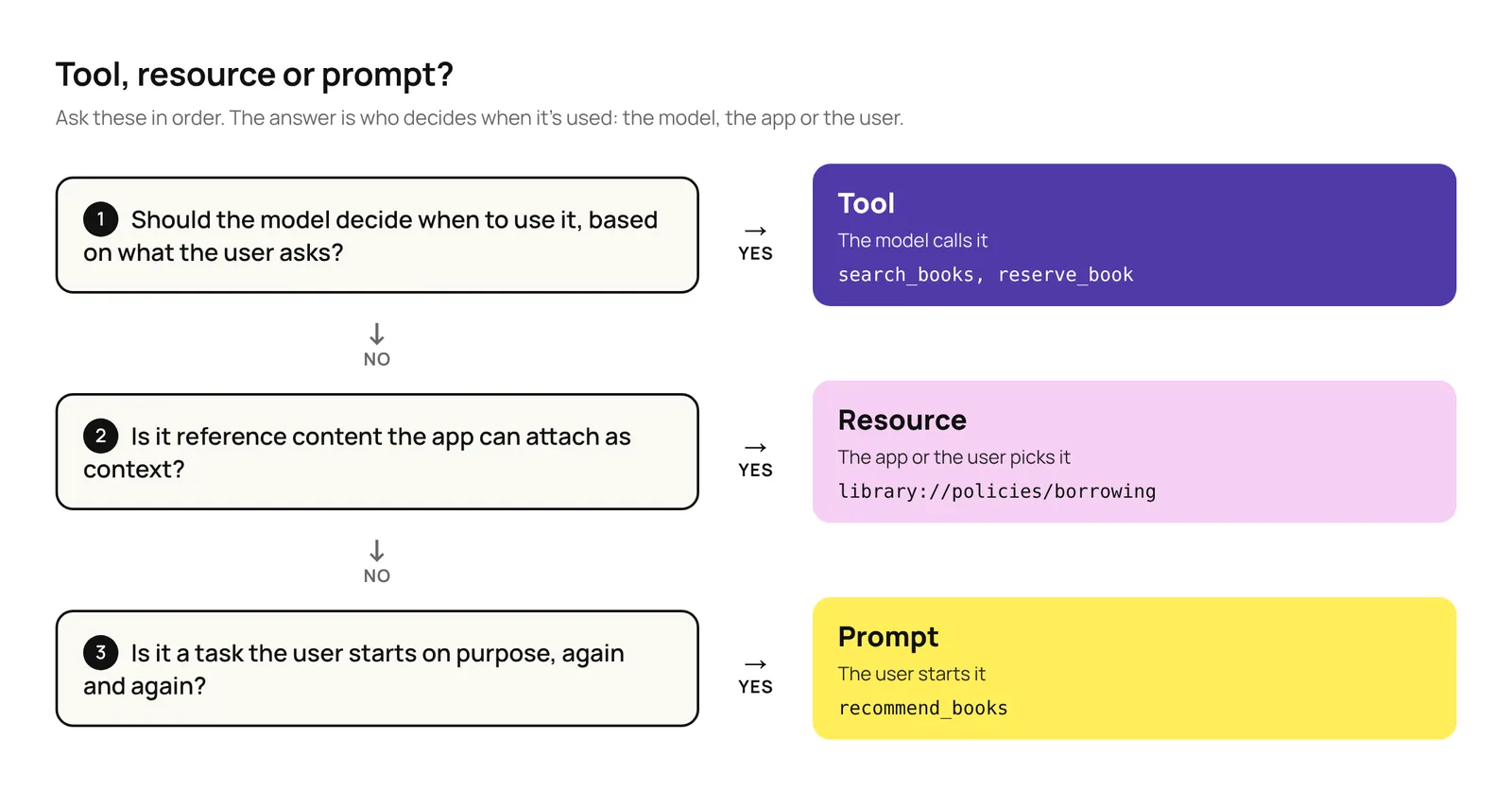
The difference is who decides when each one is used: the model, the app or the user. Figure 1 turns that into three questions. Most of the design work is in the tools, so that’s where most of this post goes.
Figure 1: Choosing between a tool, a resource and a prompt.
How to design tools
The model picks a tool by reading its name, description and inputs, then works with whatever the tool returns. Good tool design makes both of those easy.
Where I started
I was designing an MCP server for a Copilot Cowork plugin, and my first instinct was to give the model my system’s API documentation as a Markdown file, let it build the API calls itself, and have the server simply pass them on. It’s possible, and in Cowork the documentation could even live in a skill that only loads when it’s needed. But it creates a few problems:
Every API call is written from scratch. The model often gets it right, but not always. When the API returns an error, the model may try again, and every attempt costs tokens and adds to the context. When a mistake doesn’t cause an error, like a misspelled filter the API quietly ignores, the user gets a wrong answer and nobody notices.
The documentation fills the context. Whatever part of the API reference gets loaded stays in the context window. That leaves less room for the conversation, makes every turn slower and more expensive, and makes it harder for the model to recall what matters.
Approvals become all or nothing. The server sets annotations per tool, so one generic tool gets one setting for every call, and an app like Cowork follows it. If the server marks it ReadOnly = true, Cowork never asks, even before a delete. If it marks it ReadOnly = false, Cowork asks for approval, even for a simple search.
The server has to check everything. The model can call any endpoint, so the server must check every call, such as whether the user is allowed to make it.
Letting the model write the request isn’t always wrong, though. Later in this post, we’ll look at a Fabric data agent that does exactly that and works well, because of what’s built around it.
Common anti-patterns, and what to do instead
Each anti-pattern below has three parts: what it looks like, what to do instead, and why.
1. The wrong tools
One tool per API endpoint or table
Anti-pattern: A list_books tool that returns the whole catalogue to answer “Do you have any self-help books?”
Instead:search_books, which returns only the matches.
Why: APIs are built for developers, whose code can loop through thousands of records at no cost. A model can’t: everything a tool returns lands in its limited context window, and reading it costs time and money.
Overlapping tools
Anti-pattern:search_books_by_title, search_books_by_author and search_books_by_genre.
Instead: One search_books with optional filters. OpenAI’s rule of thumb is to have fewer than 20 tools available at a time.
Why: Near-identical tools make the model choose between them every time. As OpenAI’s guide to building agents puts it, the issue “isn’t solely the number of tools, but their similarity or overlap.”
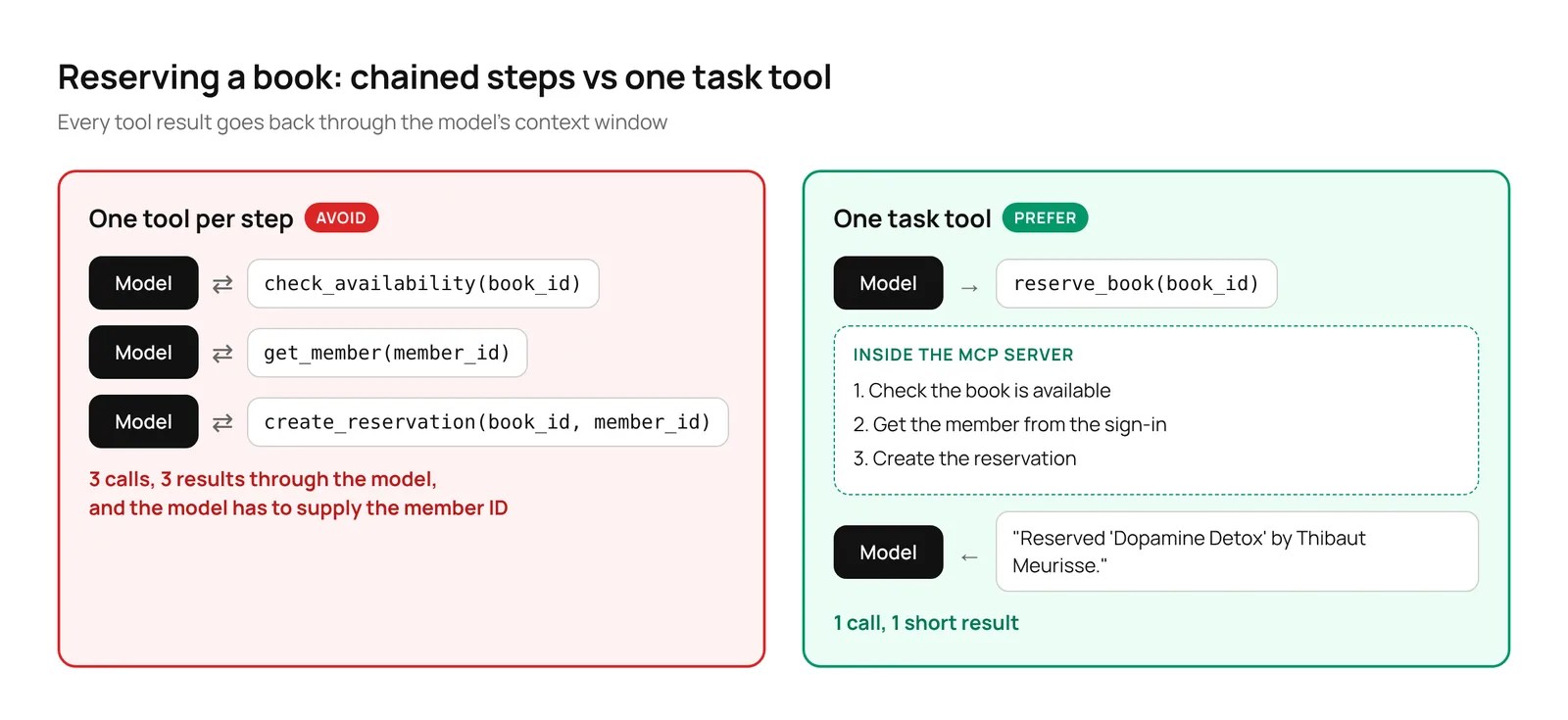
Chained simple steps
Anti-pattern: Reserving a book with check_availability, then get_member, then create_reservation.
Instead: One reserve_book tool that does all three on the server (Figure 2).
Why: Three calls mean three chances to go wrong, and every result passes through the model.
Figure 2: Three chained tools versus one task tool.
2. Confusing inputs
Asking for what your code already knows
Anti-pattern: A tool that asks for a member_id.
Instead: Take the member from the sign-in.
Why: The model has to find the ID or guess it. Taking it from the sign-in is safer too: the model can’t reserve a book for someone else.
Vague names, descriptions and inputs
Anti-pattern: A tool called books with a one-line description and inputs named q and s.
Instead: Describe each tool as you would to a new team member, use unambiguous names, like text instead of q (Anthropic’s example is user_id instead of user), and use enums, a fixed list of allowed values.
Why: The name, description and inputs are all the model has to go on. A status input that only accepts Available, OnLoan or Reserved can’t receive “checked out”.
Figure 3 shows the difference in code. Both versions do the same search; only what the model can read changes.
Figure 3: A vague tool definition versus a clear one.
3. Noisy outputs
Dumping raw data
Anti-pattern: Returning full database rows, with internal codes and dozens of columns (Figure 4).
Instead: Return only the fields the model needs, cap the results, say how many matched in total, and let the model ask for the next page. For search_books, that’s the ID, title, author and status of up to 10 books per page.
Why: Everything a tool returns fills the context window, and noise makes it harder for the model to find what matters.
Figure 4: Raw database rows versus a trimmed result.
Unhelpful errors
Anti-pattern: An error code like “ERR 4031”.
Instead: Say what went wrong and how to fix it, like “Unknown genre ‘self-hlep’. Valid genres are business, history and self-help.”
Why: An error code leaves the model stuck. A clear message lets it correct itself and try again.
4. Hidden risk
Not saying which tools change data
Anti-pattern: Tools with no annotations, so the AI app can’t tell a search from a reservation.
Instead: Use MCP’s tool annotations. Mark search_books as read-only, and let reserve_book show that it changes data.
Why: The AI app needs to know which tools only read and which change things, so it can ask the user before acting. Cowork, for example, asks the user to confirm any tool that isn’t marked read-only, and treats tools with no annotations as destructive.
The recommended pattern: task-based tools
Build a few tools, one for each task a user actually wants done. Each tool:
✓ Does the whole task in one call, on the server.
✓ Takes only what the user knows, and gets the rest from the sign-in or the app.
✓ Has a clear name, a clear description, and enums for fixed values.
✓ Returns only what the model needs, capped, with a total.
✓ Returns errors that say how to fix the problem.
✓ Is annotated, so the AI app knows whether it only reads or changes data.
For YEG & Tell, that comes down to four tools:
Tool
What it does
Changes data?
search_books
Finds books by title, author, genre, status or age group. Returns up to 10 matches per page with ID, title, author and status.
No
get_book_details
Returns the full details for one book.
No
reserve_book
Checks availability and reserves the book for the signed-in member, in one step.
Yes
get_my_loans
Lists the signed-in member’s current loans and due dates.
No
Here’s search_books with the C# SDK. LibraryDb is a small class that talks to Azure SQL; we’ll write it in Part 3.
[JsonConverter(typeof(JsonStringEnumConverter<BookStatus>))]
public enum BookStatus { Available, OnLoan, Reserved }

[JsonConverter(typeof(JsonStringEnumConverter<AgeGroup>))]
public enum AgeGroup { Children, Teen, Adult }

public record BookSummary(int Id, string Title, string Author, BookStatus Status);
public record SearchResult(IReadOnlyList<BookSummary> Books, int TotalMatches);

[McpServerToolType]
public static class LibraryTools
{
    [McpServerTool(Name = "search_books", Title = "Search books",
        ReadOnly = true, OpenWorld = false)]
    [Description("Searches the library catalogue by title, author, genre, " +
        "status or age group. Returns up to 10 books per page with their ID, " +
        "title, author and status, plus the total number of matches. Use the " +
        "ID with get_book_details or reserve_book.")]
    public static async Task<SearchResult> SearchBooks(
        LibraryDb db,
        [Description("Words from the title or author, such as 'gladwell'.")]
        string? text = null,
        [Description("A genre, such as 'self-help'.")]
        string? genre = null,
        [Description("Only return books with this status.")]
        BookStatus? status = null,
        [Description("Only return books for this age group.")]
        AgeGroup? ageGroup = null,
        [Description("The page of results to return, starting at 1. Ask for " +
            "the next page when totalMatches is higher than the books " +
            "returned so far.")]
        int page = 1,
        CancellationToken ct = default)
    {
        if (genre is not null && !await db.GenreExistsAsync(genre, ct))
        {
            var genres = string.Join(", ", await db.GetGenresAsync(ct));
            throw new McpException(
                $"Unknown genre '{genre}'. Valid genres are: {genres}.");
        }

        return await db.SearchBooksAsync(text, genre, status, ageGroup,
            page, pageSize: 10, ct);
    }
}
Most of the fixes show up in these few lines:
The descriptions tell the model what each input means and how the tools connect: search first, then reserve.
The enums and their JSON converters make the model see Available, OnLoan and Reserved, and Children, Teen and Adult, instead of numbers.
The result is capped at 10 books per page, with four fields each, plus the total number of matches, so the model can ask for the next page.
The error explains the fix. The SDK passes an McpException message back to the model, so don’t put sensitive details in it.
The genre is the one input that isn’t an enum, on purpose. Genres live in the database and can change, so the server checks the value and, if it’s wrong, returns an error listing the valid ones.
The annotations describe how the tool behaves. ReadOnly = true tells the AI app that searching only reads data. OpenWorld = false says the tool only works with YEG & Tell’s own database, not an open-ended set of outside systems like the web. In the SDK, OpenWorld defaults to true, so it’s worth setting.
And here’s the part of reserve_book that matters most for design:
[McpServerTool(Name = "reserve_book", Title = "Reserve a book",
    ReadOnly = false, Destructive = false, OpenWorld = false)]
[Description("Reserves a book for the signed-in member. Checks that " +
    "it's available first. Find the book ID with search_books.")]
public static async Task<string> ReserveBook(
    LibraryDb db,
    ClaimsPrincipal user,
    [Description("The book ID returned by search_books.")]
    int bookId,
    CancellationToken ct = default)
{
    // The member comes from the sign-in, never from the model.
    var memberId = user.FindFirst(ClaimTypes.NameIdentifier)?.Value
        ?? throw new McpException(
            "You need to be signed in to reserve a book.");

    // LibraryDb checks availability and creates the reservation (Part 3).
    return await db.ReserveAsync(bookId, memberId, ct);
}
The SDK passes the signed-in user in as a ClaimsPrincipal, so the model never sees or supplies a member ID. ReadOnly = false says the tool changes data. It’s the SDK default, but setting it makes the intent clear. Destructive defaults to true, so reserve_book sets it to false: it adds a reservation but doesn’t delete or overwrite anything. Because it isn’t read-only, the AI app can ask before reserving.
Figure 5 shows what that looks like for a user in Copilot Cowork. The model finds the book with search_books without asking, then stops for approval before reserve_book runs, because reserve_book has ReadOnly = false. Cowork asks for approval whenever a tool isn’t marked read-only or is marked destructive, and uses the tool’s Title as the heading of the approval card. The approval card shows a single input, the book ID, because the member comes from the sign-in.
Figure 5: The YEG & Tell tools in Copilot Cowork (mockup).
When the model should write the query
A few weeks before writing this post, I was building a Fabric data agent. The agent doesn’t have a separate tool for each question. It has one general tool, which Microsoft calls the DAX generation tool, that writes a DAX query from the user’s question and the semantic model. Thinking back to it while writing this section, that sounds a lot like my first instinct, and like the Vague names, descriptions and inputs anti-pattern: the model has to work out what each table, column and measure means. So why does it work?
Because the semantic model does the job that good tool design does. Microsoft says the DAX generation tool relies only on the semantic model’s metadata and its Prep for AI setup:
The semantic model’s own metadata, such as clear names for tables, columns and measures, their descriptions and synonyms, tells the agent what everything means. Microsoft’s example: names like TR_AMT or DIM_GEO_01 give the tool no context, while Total Revenue does.
Prep for AI adds three things on top of the model: an AI data schema that limits which tables, columns and measures the agent can see, AI instructions, and verified answers, which are approved examples that guide the query.
And analytics questions, like “revenue by region last quarter, excluding returns”, are too open-ended to build a tool for each one.
The anti-pattern is the bare version: a generic run_sql tool pointed straight at a transactional database, with cryptic column names, no descriptions, no limits and write access. For YEG & Tell, that means a split. Reserving a book stays a task tool. A question like “How many self-help books were borrowed last month?” could go to a read-only query tool that runs against a curated, well-described view of the database, using an account that can only read.
When you grow
Search and fetch. ChatGPT’s deep research and company knowledge features expect two read-only tools: search, which takes a query and returns results with an ID, title and URL, and fetch, which returns the full content for one ID. Our search_books and get_book_details already follow the same idea, and we’ll come back to them in Part 7.
Many servers, many tools. When an AI app is connected to many MCP servers, the tool definitions alone can fill a big part of the context window. Anthropic’s answer is code execution with MCP: the agent finds only the tools it needs and calls them from code, filtering results before they reach the model. In their example, token use dropped from about 150,000 to about 2,000, at the cost of running agent-written code in a secure sandbox. OpenAI’s tool search does something similar by loading tools only when they’re needed. YEG & Tell is far too small to need either.
How to design resources
Resources are read-only content the AI app can attach as context. The model doesn’t call them; the app or the user picks them, often from a menu. Each resource has a URI. A direct resource has a fixed URI, like library://policies/borrowing. A resource template has parameters, like library://programs/{programId}, so one definition covers every program.
Use resources for reference content that doesn’t depend on what the user asks: policies, program descriptions, the list of genres.
Use a tool when the content depends on the request. If it needs search criteria, like finding books, it’s a tool.
Give each resource a name, title, description and MIME type, so the app can show it in a menu and the model knows what it’s reading.
Keep URIs readable.library://programs/summer-reading tells you what it is.
Don’t rely on resources alone. Support varies between AI apps, and at the time of writing, Microsoft’s Cowork plugin documentation covers tools only. And where they are supported, the app decides how they’re used: in Claude, for example, the user attaches them from a menu. If the content matters, also offer it through a tool. For YEG & Tell, that would mean adding a get_policy tool to the four above.
[McpServerResourceType]
public static class LibraryResources
{
    [McpServerResource(UriTemplate = "library://policies/borrowing",
        Name = "borrowing_policy", Title = "Borrowing policy",
        MimeType = "text/markdown")]
    [Description("Loan periods, borrowing limits and late fees.")]
    public static Task<string> BorrowingPolicy(
        LibraryDb db, CancellationToken ct) =>
        db.GetPolicyAsync("borrowing", ct);

    [McpServerResource(UriTemplate = "library://programs/{programId}",
        Name = "library_program", Title = "Library program",
        MimeType = "text/markdown")]
    [Description("Details of a library program, such as summer-reading.")]
    public static Task<string> LibraryProgram(
        LibraryDb db, string programId, CancellationToken ct) =>
        db.GetProgramAsync(programId, ct);
}
The first is a direct resource. The second is a template: the SDK fills programId from the URI the app asks for.
Figure 6 shows the borrowing policy in use in Claude, which supports resources. The user attaches it from a menu, and the model answers from it without calling a tool.
Figure 6: Attaching a resource in Claude (mockup).
How to design prompts
Prompts are templates the user starts on purpose, from a menu or as a slash command, depending on the app. They package a task users repeat, and they show the model how to use your tools for it.
Build prompts for repeatable tasks, not one-offs.
Keep arguments few and clear, and describe each one. Apps build a form from them: Claude, for example, labels each field with the argument’s name and uses its description as the hint, so level reads better than readingLevel. Prompt arguments are always passed as text, so you can’t use an enum like you can for a tool input; list the allowed values in the description instead, as level does.
Name the tools the prompt should use, so the model follows the path you intended.
Don’t count on prompts to fix weak tools. The user picks a prompt now and then; the model reads your tool descriptions every time.
Treat them as a bonus. Like resources, support varies, and Cowork’s plugin documentation covers tools only.
[McpServerPromptType]
public static class LibraryPrompts
{
    [McpServerPrompt(Name = "recommend_books", Title = "Recommend books")]
    [Description("Suggests available books in a genre for a reading level.")]
    public static string RecommendBooks(
        [Description("A genre, such as self-help.")]
        string genre,
        [Description("Reading level: children, teen or adult.")]
        string level) =>
        $"Use search_books to find available {genre} books. " +
        $"Pick five suited to {level} readers and explain " +
        "each pick in one sentence. Then offer to reserve one " +
        "with reserve_book.";
}
Figure 7 shows recommend_books in Claude. The user picks it, fills in the two arguments, and Claude attaches the filled-in text to the message. Once it’s sent, the model follows it to search_books.
Figure 7: Starting a prompt in Claude (mockup).
We now have three classes: LibraryTools, LibraryResources and LibraryPrompts. The SDK finds them through their [McpServerToolType], [McpServerResourceType] and [McpServerPromptType] attributes, so registering all three takes a few lines when we set up the server in Part 3:
Before building anything else, try your design with realistic questions and read what the model does with them: which tool it picks, what it sends and what comes back. Small changes to names and descriptions often make a big difference. For YEG & Tell, I’d start with these:
Ask
What should happen
“Do you have anything by Malcolm Gladwell?”
search_books with the text “gladwell”
“Any self-help books I can borrow now?”
search_books with the genre “self-help” and the status Available
“Reserve Dopamine Detox for me.”
search_books to find the ID, then reserve_book, with approval asked in apps that use the annotations, such as Cowork
“Show me self-hlep books.”
An error listing the valid genres, then a retry with “self-help”
“What’s the late fee?” (with the borrowing policy attached)
An answer from the attached policy, with no tool call
When the model picks the wrong tool or sends the wrong input, the fix is usually a clearer name or description. In Part 3, we’ll run these against the real server.
Design checklist
Here’s every anti-pattern from this post in one place, with what to do instead.
Avoid
Do instead
One tool per API endpoint or table
Tools built around tasks, like search_books
Overlapping tools
One tool with optional filters, and fewer than 20 tools
Chained simple steps
One tool that does the whole task, like reserve_book
Asking for what your code already knows
Take it from the sign-in or the app
Vague names, descriptions and inputs
Clear descriptions, unambiguous names and enums
Dumping raw data
Only the fields the model needs, capped, with a total
Unhelpful errors
Errors that say what went wrong and how to fix it
Not saying which tools change data
Tool annotations: ReadOnly, Destructive and OpenWorld
Relying on resources and prompts alone
Offer anything important through a tool too
What’s next
In Part 3, we build the YEG & Tell MCP server in C# on Azure SQL and test it. In Part 4, we’ll deploy it to Azure and add sign-in with Microsoft Entra ID. After that, we’ll connect it to three AI apps, each with its own plugin: Copilot Cowork in Part 5, Claude in Part 6 and ChatGPT in Part 7. You can follow the whole series on the MCP series page.
Get the next part by email
New posts in the MCP series and on AI, agents and Power Platform, straight to your inbox. No spam, unsubscribe anytime.
Not too long ago, I started building my first Microsoft Copilot Cowork plugin, and I found that the first prerequisite is that the system I want Cowork to connect to must have an MCP server on top of it. So, that took me down the rabbit hole to understand what MCP is and how to build an MCP server.
In this series, we’ll start with an intro to MCP and MCP servers, then we’ll get into how to design an MCP server, build and test one, deploy it to Azure, and end with connecting it to Copilot Cowork, Claude and ChatGPT with a plugin for each.
Throughout the series, I’ll use one simple example: the YEG & Tell Library, a fictional library with an SQL database of books. And since MCP is still evolving, everything here reflects the current version of the specification, 2026-07-28.
MCP (Model Context Protocol) is a universal connector between AI apps and other systems. It lets an AI app like Claude, ChatGPT or Copilot look things up and get things done in those systems, without every AI app needing its own custom integration.
On its own, an AI model only knows what it learned in training and what you type into it. It can’t read your email or check whether a book is available at the library. MCP gives the AI app a standard way to plug into those systems.
A popular way to describe MCP is USB-C for AI. Think of your system as a device with one standard USB-C port: any accessory with a USB-C plug can connect to it, instead of the device needing a different port for each accessory. Your system’s MCP server is that USB-C port, and the AI apps are the accessories that plug into it. For example, Microsoft’s Work IQ MCP server gives AI apps access to your Outlook emails, and both a Copilot Studio agent and GitHub Copilot CLI can connect to it and work with the same inbox.
Who invented it, when and why?
MCP came out of Anthropic, the company behind Claude. Two Anthropic engineers, David Soria Parra and Justin Spahr-Summers, created it, and Anthropic released it as an open standard in November 2024.
The problem they were solving was simple. AI assistants were smart, but cut off from the files, databases and business apps where people’s actual work lives. Every connection between an AI app and a system was a custom build, repeated for every combination of app and system. MCP turned that into a build-once standard.
Because it was open, it caught on fast. Through 2025, OpenAI, Google and Microsoft added MCP support to their products, which is why it works today in ChatGPT, Gemini, VS Code and Microsoft 365 Copilot. In December 2025, Anthropic donated MCP to the Agentic AI Foundation under the Linux Foundation, so it’s now a neutral, industry-wide standard rather than something one company owns.
Why do AI apps need MCP servers? Can’t they just connect directly to the required system’s API?
This was my first question. For Copilot Studio agents, I’m used to using a Power Automate flow to connect to the system’s API, get the data, then pass it to the agent to reason on it.
The short answer: they can, but there’s a catch.
Say you have 5 AI apps that need to connect to your system:
Without an MCP server, you build the connection logic 5 times, once for each AI app, including how each one signs in. And every time your system changes, say a new API endpoint is added, you update it 5 times.
With an MCP server, you build the server once, and all 5 apps connect to it, as long as they’re MCP-capable. Each app needs a one-time setup, but that’s configuration, not code.
Figure 1: Five integrations to build and maintain, or one MCP server.
On top of saving you from building the same thing 5 times, an MCP server gives you:
A model-friendly menu. APIs are built for developers, with dozens of endpoints and big payloads. An MCP server offers a short list of clearly described actions, like search_books(genre), that the model can actually use well.
One place for security. Sign-in, permissions, and which operations are allowed at all, all handled in the server.
And what if your system doesn’t have an API at all, like a database or files on someone’s computer? There’s nothing for the AI app to call. An MCP server solves that too: it runs where the data lives and becomes the way in. A server inside your network can query an on-prem database directly (cloud apps like Copilot Cowork would reach it through a secure HTTPS endpoint), and a local MCP server can read files on your computer. YEG & Tell’s book database is this case too: it’s an Azure SQL database with no API, just tables, and the MCP server turns each request into a safe query.
To be fair, if only one AI app will ever use your system, connecting directly to the API can be simpler. More on that at the end.
What is the architecture of MCP?
Once I got past the “why”, the next step was understanding the moving parts. There are three:
MCP host: the AI app you work in, such as VS Code or Copilot Cowork.
MCP client: a component built into the host that keeps a connection to one MCP server. The host runs one client for each server it connects to.
MCP server: a program that sits on top of your system and exposes what it can do to the host, through the client. The Microsoft Learn MCP server is a good example.
One client per server: configuration, not code
When I first read “the host creates one client per server”, I wondered if the host’s developers had to write a client for every server. That didn’t make sense to me, and it turns out it’s not the case.
The host’s developers write the client code once. When you add a server, for example by adding a plugin in Copilot Cowork or a settings entry in VS Code, the host starts a new copy of its built-in client and points it at that server. It’s like browser tabs: one browser, a separate tab for each website.
So the only part you build for your system is the server. Let’s look at that next.
What is an MCP server?
An MCP server is a program that sits on top of a system and exposes some of what that system can do to AI apps, in a standard way. The system can have an API, or it can be a database, like YEG & Tell’s SQL database of books. The server decides what the AI app is allowed to do, and translates each request into an API call or a query.
Servers come in two flavours:
Local: runs on the same computer as the AI app, which launches it and talks to it directly. Handy for things like reading files on your machine, but only AI apps that run on your computer, like VS Code, can use it.
Remote: runs on a web server, and AI apps connect to it over the internet, usually after you sign in. This is how business systems are typically exposed, and it’s the only kind Copilot Cowork supports.
An MCP server can offer three things: tools, resources and prompts. Here’s a summary of each one.
Feature
What it is
Who decides when it’s used
YEG & Tell example
Tools
Actions the model can call
The model
search_books, reserve_book
Resources
Read-only content the server already has
The AI app or the user
PDF describing the summer reading program
Prompts
Ready-made instruction templates
The user
“Recommend books” template
Tools
Tools are actions the model can call. Each tool has a name, a description and a list of inputs. The model reads the descriptions and decides on its own which tool to call, so a clear description matters a lot. For actions that change data, like reserve_book, the server can mark the tool as one that changes data. Some AI apps, like Copilot Cowork, then ask you to approve the call first. Not all do: when I tested in VS Code for Part 3, the Codex agent reserved a book without asking, and the Claude agent asked even before a simple search.
Resources
Resources are read-only content the server already has, like the PDF describing YEG & Tell’s summer reading program. I got this one wrong at first: I thought the user attaches the PDF. Actually, the server offers it, the AI app lists it in a menu, and you pick it (or the app adds it automatically). Either way, you never upload anything.
Prompts
Prompts are ready-made templates you choose to run, often as slash commands. For example, a recommend_books prompt asks you for a genre and a reading level, then hands the model well-written instructions so you don’t have to write them yourself.
In practice, tools do most of the work. Virtually every MCP-capable AI app supports them, while support for resources and prompts is patchy. That’s why many servers expose tools only, for example a get_program_info tool instead of a program PDF resource.
How do the MCP client and server talk to each other?
MCP splits this into two layers: what the messages say, and how they travel.
What the messages say: JSON-RPC
RPC stands for Remote Procedure Call, a way for one program to call a function that runs in another program as if it were local. JSON-RPC is a version of that where every message is written in JSON. A message is one of three kinds:
Request: asks the other side to run something, and has an id.
Response: the answer to a request, carrying the same id.
Notification: a heads-up with no id and no reply expected, like “my list of tools changed”.
Here’s a simplified call to the YEG & Tell server:
The same pattern covers everything else: tools/list, resources/list and prompts/list to see what a server offers, and resources/read and prompts/get to use them. A client can also start with server/discover to find out which features and protocol versions the server supports.
If you read older MCP material, you’ll see every connection start with an initialize handshake. Since the 2026-07-28 version, MCP is stateless: each request carries everything the server needs. Many apps still use the older versions, and the SDKs handle both, so you rarely have to think about it.
How the messages travel: stdio and Streamable HTTP
stdio for local servers: the AI app starts the server on the same computer, and they exchange messages directly, with no network involved.
Streamable HTTP for remote servers: messages go over HTTP (HTTPS in production), and MCP recommends OAuth for signing users in.
Putting it all together
Figure 2: The host runs one client per server; the numbers follow a single request.
Here’s what happens when someone asks the AI app, “Do you have any self-help books available?” The numbers match the orange markers in the diagram:
The model looks at the tools from all connected servers and picks search_books from the Library server.
The host hands the call to the client connected to the Library server.
The client sends a tools/call request over Streamable HTTP.
The Library server queries the book database and returns the results.
The results travel back through the client to the model, which writes the answer.
When to build an MCP server?
Coming back to where I started: when should you build one?
Build an MCP server when more than one AI app needs to use your system, and you want to build and maintain that connection once, with one place to control who can do what.
You also need one when the AI app you’re connecting can only reach outside systems through MCP. That was my case: Copilot Cowork couldn’t connect to my system through its API, so the plugin I was building needed an MCP server.
Before you start building, ask yourself:
Will only one AI app ever use the system? Then a direct integration in that app might be simpler, as long as the app supports one. Copilot Cowork, for example, doesn’t at the time of writing this post.
Does an MCP server for the system already exist? Many vendors now publish their own. If so, use it instead of building yours.
Is the platform’s own connector enough? In Copilot Studio, for example, a Power Platform custom connector may already do the job.
What’s next
In the next post, we’ll look at how to design an MCP server’s tools, resources and prompts. In Part 3, we build and test the YEG & Tell MCP server. In Part 4, we’ll deploy it to Azure and add sign-in, and in Parts 5 to 7, we’ll connect it to Copilot Cowork, Claude and ChatGPT, each with its own plugin. You can follow the whole series on the MCP series page.
Get the next part by email
New posts in the MCP series and on AI, agents and Power Platform, straight to your inbox. No spam, unsubscribe anytime.