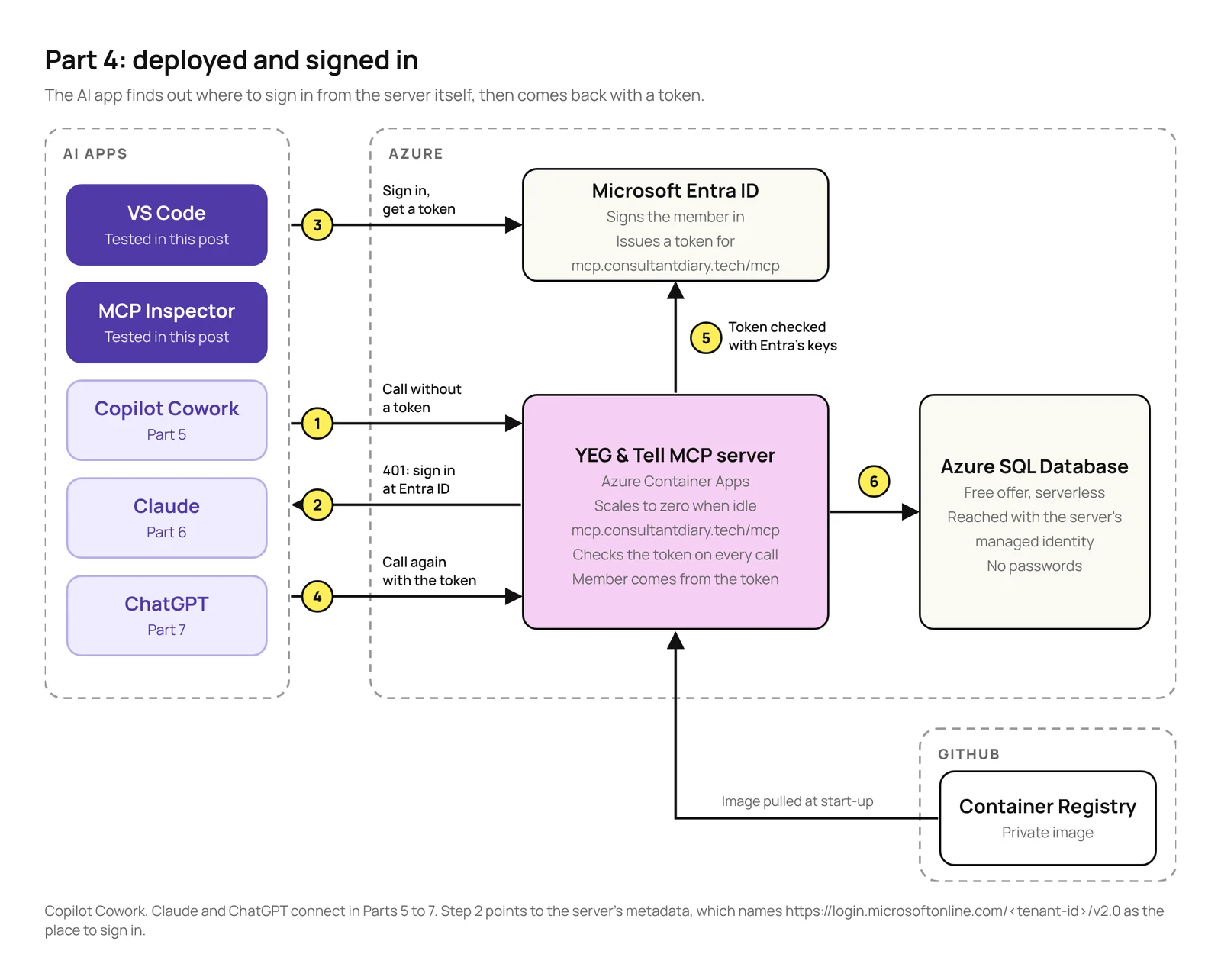
In Part 3, the YEG & Tell Library’s MCP server ran locally and signed everyone in as a test member. That was fine for testing, but no AI app outside my computer could reach it, and every reservation went to the same member.
In this post, we put the server online in Azure and replace the test member with a real sign-in through Microsoft Entra ID, so each person who signs in gets their own library membership. I test it with the MCP Inspector and GitHub Copilot in VS Code. Connecting it to Copilot Cowork, Claude and ChatGPT comes in Parts 5 to 7.
The snippets in this post cover the important parts. The full code is in a private GitHub repo; if you’d like access, reach out to me on LinkedIn.
TL;DR
- The setup: Azure Container Apps for the server, Microsoft Entra ID for sign-in, and Azure SQL reached with the server’s managed identity, so there’s no database password.
- The server checks sign-in itself: the MCP C# SDK tells the AI app where to sign in, and Microsoft.Identity.Web checks the token it comes back with.
- Gotchas:
- The Application ID URI must match the exact address clients use, including
/mcp. Set the app registration to v2 tokens first. - Use the
oidclaim to identify the member. The default user ID (sub) is different for every app. - Entra ID only works with pre-registered clients, so every AI app has to be set up for it, even the MCP Inspector.
- The Application ID URI must match the exact address clients use, including
In this post
- What we’re building
- How sign-in works with MCP
- What you need
- Step 1: Register the server in Microsoft Entra ID
- Step 2: Add sign-in to the server
- Step 3: Build and push the container image
- Step 4: Create the container app and connect the database
- Step 5: Add the custom domain
- Step 6: Test it
- Errors I hit, and the fix for each
- What’s next
What we’re building
The tools don’t change. What changes is where the server runs and who it thinks you are:
| Piece | Part 3 | Part 4 |
|---|---|---|
| Server | Runs locally at localhost:5050 | Azure Container Apps at https://mcp.consultantdiary.tech/mcp |
| Sign-in | A development stand-in signs everyone in as test-member | Microsoft Entra ID. Each person signs in as themselves |
| Library member | The seed test member | Created the first time someone signs in |
| Database access | My own Azure sign-in | The server’s managed identity, with only the permissions it needs |
How sign-in works with MCP
The MCP specification treats a protected MCP server as an OAuth resource server. The server doesn’t sign anyone in itself. It only says where to sign in, and then checks the token that comes back:
- The AI app calls the server without a token and gets a
401, with a pointer to the server’s Protected Resource Metadata. The spec says a server “MUST implement” it. - That metadata names the server’s address (the
resource), the authorization server (Entra ID) and the scope to ask for. - The AI app signs the user in with Entra ID and asks for a token for that
resource. - The AI app calls the server again with the token. The server checks that the token is valid and was issued for this server, and then runs the tool.

The token only lets the AI app call the server. The server never passes it on: it reaches the database with its own managed identity (step 6), and uses the member ID from the token in its own queries. That’s also what the spec asks for: an MCP server “MUST NOT accept or transit any other tokens”.
The spec gives AI apps three ways to register with the authorization server. Entra ID only supports one of them: pre-registration. So every AI app that connects has to be set up in Entra ID first. For this post, that’s VS Code and the MCP Inspector.
What you need
Everything from Part 3, plus:
| What | Version I used | Why |
|---|---|---|
| Microsoft.Identity.Web | 4.16.1 | Checks the Entra ID token. |
MCP C# SDK (ModelContextProtocol.AspNetCore) | 2.2.0 | Serves the metadata and the 401. |
Azure CLI and its containerapp extension | 2.90 and 1.3.0b5 | To create the container app. |
| MCP Inspector | 2.13.0 | To test the sign-in directly. |
| A domain you can add DNS records to | For the server’s address and its free certificate. | |
| A GitHub account | To store the container image. |
The server runs on the Azure Container Apps Consumption plan, which has a monthly free grant of 180,000 vCPU-seconds, 360,000 GiB-seconds and 2 million requests, and no compute charges while the app has scaled to zero. GitHub says container image storage is currently free.
When I checked Azure Cost Management on October 31, the resource group showed CA$0.00 for October, with the database on the free offer. The container app was created that same day, and its usage hadn’t shown up in Cost Management yet.
Step 1: Register the server in Microsoft Entra ID
I followed Microsoft’s Secure an MCP server with Microsoft Entra ID. The order matters:
- Create an app registration for the server, single tenant.
- Set the token version to 2 in the manifest (
api.requestedAccessTokenVersion). Microsoft calls this “the step that most people miss”. Without it, you can’t set anhttpsApplication ID URI. - Set the Application ID URI to the server’s exact address,
https://mcp.consultantdiary.tech/mcp, with no trailing slash. - Add a scope named
library.use. The full scope name becomeshttps://mcp.consultantdiary.tech/mcp/library.use. - Pre-authorize VS Code under Authorized client applications, using the client ID from Microsoft’s App Service MCP guide,
aebc6443-996d-45c2-90f0-388ff96faa56.
Note that the address includes /mcp. RFC 9728 says the resource in the metadata “MUST be identical to the URL that the client used to make the request”, and clients connect to .../mcp, not the root. If the Application ID URI doesn’t match the resource the client sends, Entra ID refuses the token with AADSTS9010010.
I expected to have to verify consultantdiary.tech in my Entra tenant before Entra ID would accept that URI. It accepted it without that, and real sign-ins got tokens. Microsoft’s identifier URI documentation says a verified domain “may still be required” for https URIs, so this may not work the same in every tenant.

A second app registration for the Inspector
The MCP Inspector needs its own client app. If the client and the server are the same app registration, Entra ID refuses token refreshes with AADSTS90009, which the Inspector’s own code warns about. I created a second app registration as a public client (Mobile and desktop), gave it the library.use permission, and registered its redirect URI.
The redirect URI caught me out. The Inspector’s docs give http://localhost:6274/oauth/callback, but it opened in my browser at 127.0.0.1, and the redirect follows the address bar. The first sign-in failed with:
AADSTS50011: The redirect URI 'http://127.0.0.1:6274/oauth/callback' specified in the
request does not match the redirect URIs configured for the application '<inspector-client-id>'.
Registering both http://localhost:6274/oauth/callback and http://127.0.0.1:6274/oauth/callback fixed it.
Step 2: Add sign-in to the server
I kept the sign-in check in the code rather than in an Azure feature, so it works on any host and you can see it. It needs one new package:
dotnet add package Microsoft.Identity.WebTwo pieces do the work. The MCP C# SDK’s AddMcp serves the Protected Resource Metadata and writes the 401. It doesn’t check tokens. Microsoft.Identity.Web does that, and it’s Microsoft’s recommended library for this in ASP.NET Core. This is the new part of Program.cs:
// The server's address. Clients send it as the OAuth "resource", and it's the
// Application ID URI of the app registration in Microsoft Entra ID.
var resource = builder.Configuration["McpResource"]!;
var tenantId = builder.Configuration["AzureAd:TenantId"];

builder.Services.AddAuthentication(options =>
    {
        options.DefaultAuthenticateScheme = JwtBearerDefaults.AuthenticationScheme;
        options.DefaultChallengeScheme = McpAuthenticationDefaults.AuthenticationScheme;
    })
    // Serves the Protected Resource Metadata and the 401 that points to it.
    .AddMcp(options => options.ResourceMetadata = new()
    {
        Resource = resource,
        AuthorizationServers = { $"https://login.microsoftonline.com/{tenantId}/v2.0" },
        ScopesSupported = [$"{resource}/library.use"],
    })
    // Validates the Entra ID access token: signature, issuer, audience, expiry.
    .AddMicrosoftIdentityWebApi(
        jwt => jwt.Events = new() { OnTokenValidated = SignInMemberAsync },
        entra => builder.Configuration.Bind("AzureAd", entra));

builder.Services.AddAuthorization();
The authorization server is the v2.0 issuer, which Microsoft’s MCP guide requires. Then the MCP endpoint requires a token with the library.use scope:
app.UseAuthentication();
app.UseAuthorization();

app.MapMcp("/mcp").RequireAuthorization(policy => policy.RequireScope("library.use"));
The two Use lines are easy to leave out, because ASP.NET Core adds them for you. But it adds them at the start of the pipeline, before Part 3’s development stand-in, so every local request got a 401. Calling them after the stand-in fixes it. The stand-in still runs in Development only, and now also adds the library.use scope so it passes the same check.
Which ID is the member?
Part 2’s tools read the member from ClaimTypes.NameIdentifier. With an Entra ID token, that claim holds sub by default, and sub is different for every app the user signs in to. The ID that stays the same is the user’s object ID, oid. So once the token is validated, the server swaps it in and creates the member if it’s their first visit:
// Runs after the token is validated. The member ID is the user's Entra object ID
// ("oid"). It goes in ClaimTypes.NameIdentifier, where the tools read it.
static async Task SignInMemberAsync(TokenValidatedContext context)
{
    var user = context.Principal!;
    var objectId = user.GetObjectId();
    if (objectId is null)
    {
        context.Fail("The access token has no oid claim.");
        return;
    }

    var identity = (ClaimsIdentity)user.Identity!;
    identity.TryRemoveClaim(identity.FindFirst(ClaimTypes.NameIdentifier)); // "sub"
    identity.AddClaim(new Claim(ClaimTypes.NameIdentifier, objectId));

    // Members are created on first sign-in.
    var db = context.HttpContext.RequestServices.GetRequiredService<LibraryDb>();
    await db.EnsureMemberAsync(objectId, user.FindFirst("name")?.Value ?? "Library member",
        context.HttpContext.RequestAborted);
}
Because of that swap, the tool code from Part 2 didn’t change at all. EnsureMemberAsync is a single insert that only runs if the member doesn’t exist yet:
INSERT INTO dbo.Members (SignInId, DisplayName)
SELECT @signInId, @displayName
WHERE NOT EXISTS (SELECT 1 FROM dbo.Members WITH (UPDLOCK, HOLDLOCK)
                  WHERE SignInId = @signInId);
The server is stateless, so there’s no “session start” to hook into. This check runs on every request, including listing the tools. It’s a small indexed query, but it also means the first request of any kind wakes a paused database.
Step 3: Build and push the container image
Azure Container Apps doesn’t run your code directly. It runs a container image: a packaged copy of the server, with the compiled code and the .NET runtime it needs. The image lives in a container registry, and Container Apps downloads it from there when it starts the server.
Azure’s own registry, Azure Container Registry, has no free tier: the Basic tier is listed at about US$5 a month (US$0.17 a day in East US). GitHub says storage on its Container Registry is currently free. To keep the cost of this experiment close to $0, I used GitHub instead of Azure. GitHub also keeps the image private by default.
You don’t need Docker to build the image. dotnet publish builds it and pushes it to the registry:
$env:DOTNET_CONTAINER_REGISTRY_UNAME = "<github-user>"
$env:DOTNET_CONTAINER_REGISTRY_PWORD = "<token>"
dotnet publish src/YegAndTell.Mcp -c Release -t:PublishContainer `
    -p ContainerRegistry=ghcr.io `
    -p ContainerRepository=<github-user>/yeg-and-tell-mcp `
    -p ContainerImageTag=v1
Before pushing, I scanned the published files, and the Release build had my local folder path, including my Windows user name, inside the .dll and .pdb files. The .pdb also had the repo’s URL. In a public image, anyone could read them. Two settings in the project file fixed it:
<!-- Keep local file paths out of Release builds, and so out of the container image. -->
<PropertyGroup Condition="'$(Configuration)' == 'Release'">
  <DebugType>none</DebugType>
  <ContinuousIntegrationBuild>true</ContinuousIntegrationBuild>
</PropertyGroup>
I kept the image private anyway. GitHub notes that once a package is public, it can’t be made private again.
Step 4: Create the container app and connect the database
The app starts on a placeholder image, so its managed identity exists before I connect it to the database:
az containerapp env create --name <environment> --resource-group <resource-group> `
    --location <region> --logs-destination none

az containerapp create --name yeg-and-tell-mcp --resource-group <resource-group> `
    --environment <environment> --image mcr.microsoft.com/k8se/quickstart:latest `
    --system-assigned --ingress external --target-port 8080 `
    --min-replicas 0 --max-replicas 1 --cpu 0.25 --memory 0.5Gi `
    --env-vars "McpResource=https://mcp.example.com/mcp" `
        "AzureAd__TenantId=<tenant-id>" "AzureAd__ClientId=<server-app-client-id>" `
        "ConnectionStrings__Library=Server=tcp:<server>.database.windows.net,1433;Database=<database>;Authentication=Active Directory Managed Identity;Encrypt=True;Connect Timeout=60"
--min-replicas 0lets the app scale to zero when nobody is using it, so it only uses the free grant when it’s called.--logs-destination noneskips the Log Analytics workspace, which would cost money.- There’s no password in the connection string. The app signs in to Azure SQL with its managed identity.
Azure Container Apps ends HTTPS at its own front door and passes requests on to the app. For the server to know the request came in over https, and put https addresses in its metadata, the project file sets an environment variable that tells ASP.NET Core to trust the forwarded headers:
<ContainerEnvironmentVariable Include="ASPNETCORE_FORWARDEDHEADERS_ENABLED" Value="true" />Database permissions
The managed identity gets a database user with only the permissions the server needs:
IF DATABASE_PRINCIPAL_ID('$(AppName)') IS NULL
    CREATE USER [$(AppName)] FROM EXTERNAL PROVIDER;

-- Only what the server needs.
GRANT SELECT ON dbo.Books TO [$(AppName)];
GRANT UPDATE (Status) ON dbo.Books TO [$(AppName)];     -- reserve_book
GRANT SELECT ON dbo.Genres TO [$(AppName)];
GRANT SELECT, INSERT ON dbo.Members TO [$(AppName)];    -- created on first sign-in
GRANT SELECT ON dbo.Loans TO [$(AppName)];
GRANT INSERT ON dbo.Reservations TO [$(AppName)];       -- reserve_book
GRANT SELECT ON dbo.Policies TO [$(AppName)];
GRANT SELECT ON dbo.Programs TO [$(AppName)];
The app can change a book’s status, but nothing else about the book, and it can add members and reservations but not delete them.
The firewall trade-off
The database firewall only let in my own IP address. Container Apps’ outbound IP addresses can change, and a fixed one needs a NAT Gateway, which isn’t free. So I used Azure SQL’s “Allow Azure services” rule:
az sql server firewall-rule create --resource-group <resource-group> --server <server> `
    --name AllowAllWindowsAzureIps --start-ip-address 0.0.0.0 --end-ip-address 0.0.0.0
Microsoft is clear about what that means: it allows connections from “all Azure services, including services running in other customers’ subscriptions”. What protects the database is that it only accepts Microsoft Entra sign-ins, so a connection still needs an identity with access. I accepted that for this demo.
Step 5: Add the custom domain
I used a subdomain of my blog, mcp.consultantdiary.tech, because the Application ID URI has to match the server’s address, and Microsoft’s documented formats for https URIs use your own domain rather than Azure’s generated one. It also gives the plugins in Parts 5 to 7 an address that won’t change.
Container Apps gives every app an address under azurecontainerapps.io, and it gives custom domains a free managed certificate. I added two DNS records for mcp.consultantdiary.tech:
| Type | Host | Value |
|---|---|---|
| CNAME | mcp | The app’s generated address |
| TXT | asuid.mcp | The app’s domain verification ID |
Then I added the domain to the app and requested the certificate. It stayed pending for about four minutes before it was issued.
az containerapp hostname add --hostname mcp.example.com `
    --resource-group <resource-group> --name yeg-and-tell-mcp
az containerapp hostname bind --hostname mcp.example.com `
    --resource-group <resource-group> --name yeg-and-tell-mcp `
    --environment <environment> --validation-method CNAME
On my network, hostname bind kept failing with connection resets, so I ran the same two steps as direct az rest calls instead. That was my network, not Azure, but if the command keeps failing for you, that’s another way to do it.
Is it safe to publish the address?
I asked myself this before naming the domain in this post. The address is public anyway: every AI app that connects needs it, DNS records are public, and certificates for a domain are normally published in public Certificate Transparency logs. The server’s metadata is public too, by design, and it includes my tenant ID in the sign-in address.
Knowing the address doesn’t get anyone in. They still need a token for this server from my tenant, and the app registration is single tenant, so people outside it can’t get one. The real risk is cost: anyone can send requests that get a 401, and each one counts against the free grant and wakes the app. Max replicas is 1, so the compute is capped, and a budget alert in Azure Cost Management is a cheap way to catch it early.
Step 6: Test it
Without signing in
With no token, the server should answer 401 and point to its metadata. One surprise: GET /mcp returns 405 Method Not Allowed, because the server is stateless and only accepts POST. So test with POST:
curl.exe -i -X POST https://mcp.consultantdiary.tech/mcp -H "Content-Type: application/json" -d "{}"HTTP/1.1 401 Unauthorized
www-authenticate: Bearer resource_metadata="https://mcp.consultantdiary.tech/.well-known/oauth-protected-resource/mcp"The metadata it points to has the server’s address, Entra ID’s v2.0 issuer and the scope. The spec says the 401 SHOULD also include the scope. SDK 2.2.0 doesn’t add it, but the AI apps I tested used scopes_supported from the metadata instead, which is what the spec says to fall back to.
I also sent a valid Entra ID token that was issued for a different app, Azure Resource Manager. The server refused it with a 401, and the log showed why: IDX10214: Audience validation failed. The signature and expiry were fine; it just wasn’t a token for this server.
Signing in with the MCP Inspector
In the MCP Inspector, I added the server, entered the Inspector app’s client ID in its OAuth settings and selected Connect. After the redirect URI fix from Step 1, Entra ID asked me to pick an account, then showed two consent screens: one for the Inspector app and one for the server app. Because I’m an admin in the tenant, the second one also offered to consent for everyone in my organization:


After I accepted, the Inspector connected, and search_books returned Malcolm Gladwell’s books from the deployed server:

In the database, a new row appeared in dbo.Members with my Entra object ID and my name from the token.

That one result answered three questions at once: Entra ID issued a token for https://mcp.consultantdiary.tech/mcp, the token had the oid and name claims, and the managed identity could reach the database and write to it.
Signing in with GitHub Copilot in VS Code
In VS Code, I added the deployed server to .vscode/mcp.json, selected Start and signed in when asked:
"yeg-and-tell-azure": {
  "type": "http",
  "url": "https://mcp.consultantdiary.tech/mcp"
}
These tests ran in the Local harness. “Reserve a self-help book for me” called search_books, then asked before running reserve_book, as in Part 3:

After I allowed it, the reservation went through as me, not as a test member. The new row in dbo.Reservations has my member ID:

One thing I didn’t expect: I’d left the local server in mcp.json too. Both servers have the same tools, so the model tried the local one first, found it wasn’t running and fell back to the Azure one. If you test both, stop the one you’re not using.

Errors I hit, and the fix for each
| Error | Cause | Fix |
|---|---|---|
AADSTS9010010 | The Application ID URI doesn’t exactly match the resource the client sends | Use the exact address, including /mcp, with no trailing slash |
AADSTS50011 | The Inspector’s redirect URI isn’t registered | Register both localhost and 127.0.0.1 |
AADSTS90009 | The client and the server are the same app registration | Give the Inspector its own app registration |
401 for every local request | UseAuthentication() ran before the development stand-in | Call it explicitly, after the stand-in |
401 with a valid token, IDX10214 | The token was issued for a different app | Working as intended |
405 on GET /mcp | The server is stateless and only accepts POST | Test with POST |
What’s next
The server is online and knows who’s signed in. In Part 5, we connect it to Copilot Cowork with a plugin, which needs its own setup in Entra ID. You can follow the whole series on the MCP series page.
Sources
- MCP specification 2026-07-28: Authorization
- RFC 9728: OAuth 2.0 Protected Resource Metadata
- Microsoft Learn: Secure an MCP server with Microsoft Entra ID
- Microsoft Learn: Secure MCP servers on App Service with Entra (VS Code client ID)
- Microsoft Learn: Identifier URI restrictions
- Microsoft Learn: Azure Container Apps billing
- Microsoft Learn: Custom domains and free managed certificates in Azure Container Apps
- Microsoft Learn: Azure SQL Database firewall rules
- GitHub Docs: Billing for GitHub Packages
- MCP Inspector
A note on how this post was written: the experience, examples and voice are mine. The writing was enhanced with the help of AI.

Leave a Reply