Note: This post was written in February 2020. Some screens and steps may have changed since then.
Introduction
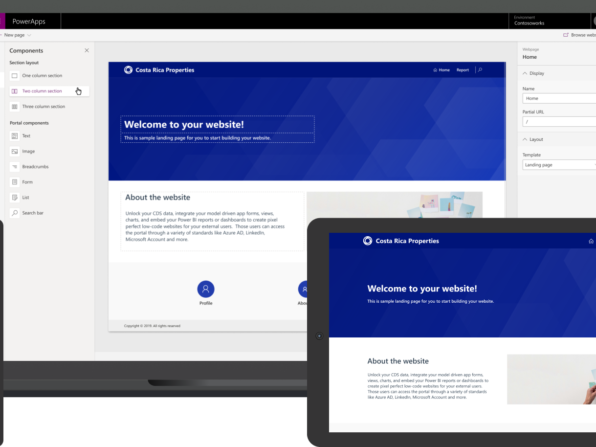
In late 2019, Microsoft released the new Power Apps Portals, joining Canvas Apps and Model-Driven Apps in the Power Apps family.
Power Apps Portal was a long-awaited addition to the suite. While Canvas and Model-driven apps have made building applications a lot easier than InfoPath, they couldn’t be used to build public apps for anonymous users. Power Apps Portals now fills this gap.
Power Platform
To understand the big picture, the Power Platform is a suite of no-code/low-code tools. The Platform contains a set of tools that include Power Apps, which in turn is made up of Power Apps Portals, Canvas Apps and Model-Driven Apps.

Image from: vinergy.com.au
The Power Platform tools are:
- Power BI – for building business intelligence dashboards and reports
- Power Apps – for building custom applications to capture information
- Canvas Apps – for building apps starting from a blank canvas
- Model-Driven Apps – for building apps generated from your data model and business process
- Portals – for building websites for external and/or authenticated users
- Power Automate – for building workflows to process information
- Power Virtual Agents – for building chat-bots
What are we learning today?
In this blog post we will learn the following:
- When to use Power Apps Portals.
- Power Apps Portals Architecture.
- How to build your first Power Apps Portal.
When to use Power Apps Portals
There are two main uses for Power Apps Portals:
- If you want to build a public-facing website that can be accessed by anonymous and/or authenticated users.
- If you want an integrated experience with other Microsoft technologies like:
- Embedding a Power BI dashboard and/or report into your website
- Triggering a workflow when a user submits a form on your website
- Leverage Azure Blob Storage and/or SharePoint to store documents
- Use Application Insights to track solution usage
Power Apps Portals Architecture
Power Apps Portals isn’t completely new. It has been around for some years, but it was previously marketed as “Dynamics 365 Portals” and offered only as an add-on to Dynamics 365 model-driven applications. Portals use the Bootstrap 3.3.x framework to control the appearance of the solution, as well as the template language Liquid.
Power Apps Portal is built on top of Common Data Service (CDS). The CDS database will host all your portal’s data like pages, page templates, forms, forms’ data etc.
Important Note: You can only create one portal per Power Apps environment. If you need to create a second portal, then you will need to create a second environment.
Before we can create a Portal, we will need two prerequisites:
- A Power Apps environment
- A CDS database

Build your first portal
In this tutorial I’ll combine my passion for personal wellness with my passion for the Power Platform. We will build a gym signup form on top of Power Apps Portal. When the form is submitted the data will be saved to our CDS database. Here’s what the end result will look like:

To get there, we’ll follow the steps below:
- Create a new Power Apps environment with a CDS database.
- Create gym signup form as a CDS entity.
- Create Power Apps Portal.
- Embed the form in the Portal
Create a new Power Apps environment with a CDS database
When you can login to https://make.powerapps.com, you will already have at least one Power Apps environment. If you haven’t created a Portal on that environment, then you can leverage your existing environment to build a new portal. However, if you need to build a new environment, then follow the following steps:
- Go to https://make.powerapps.com
- Click on the gear at the top right corner of the page
- Then click on Admin center

- Click on Environments in the left navigation bar
- Click on + New in the top navigation bar

- A New environment form will show up

- Fill-in the fields:
- Name: pick a name for your environment
- Type: Trial
- Region: pick your region
- Purpose: fill-in the purpose of your environment
- Create a database for this environment?: Yes
- Click Next
- An Add database form will show up:
- Fill-in the fields:
- Language: choose your language
- Currency: choose your currency
- Enable Dynamics 365 apps: No (this option should be greyed out, since we selected “Trial” for the environment type)
- Deploy sample apps and data No
- Click Save
- Your environment should soon be ready
Create gym signup form as a CDS entity
Now that we have the Power Apps environment ready, the next step is to build our gym signup form. We’ll start by creating a new CDS entity named Gym Membership. Next, we will add our fields to the entity, and finally we will create the form. You can think of the entity as a database table.
Create Entity
- Go to https://make.powerapps.com
- On the left navigation bar, click on Data -> Entities
- In the top navigation bar, click + New entity

- Fill in the fields as follows:
- Display name: Gym Membership
- Primary Field
- Display name: Full Name
- Click Create at the bottom
Add fields
- Add the rest of the fields:
- For each of the following fields,
- Click + Add field in the top bar,
- Then fill-in the fields as follows,
- Then click OK at the bottom
- For each of the following fields,
| Display name | Data type | Comment |
| Membership Number | Auto number | Autonumber type: String prefixed number Prefix: blank Minimum number of digits: 4 Seed value: 1 |
| First Name | Text | |
| Last Name | Text | |
| Gender | Option Set | Click on the Option set drop down Click on + New option set Add the following items: “Male” “Female” “Prefer not to say” |
| Birth Date | Date Only | |
| Phone Number | Phone | |
| Email Address | ||
| Address | Text |
- Click Save Entity at the bottom right corner
Create Form
- Click on Forms

- Click Add form -> Main form in the top bar
- In the left bar,
- Change Display Name to “Signup form”
- Change Description to: “A form for gym membership signup.”
- Drag the fields we added above from the left side bar to the canvas
- When you are done, the form should look as follows:

- Click on the Membership Number field, then click Hide field from the right bar
- Click on the Owner field, then click Hide field from the right bar
- Click Save then Publish in the top right corner of the page
Create Power Apps Portal
- Go to https://make.powerapps.com
- Click on Portal from blank

- Fill-in the new portal form:
- Name: Hercules Gym
- Address: HerculesGym

- Click Create
Note: It usually takes 5 to 10 minutes to create the portal
- Once the portal is created, it should look like below:

Embed the form in the Portal
- Click on the pages icon in the left bar
- Right-click Services, then click Add a child page

- Once the page is added, in the right bar:
- Change Name to: “Signup”
- Change Partial URL to: “signup”

- Click on the components icon in the left bar, then click on One column section

- Click inside the column you just created
- Then click on the components icon in the left bar, then click on Form

- In the right bar:
- Set Name to “Signup form”
- Entity to: “Gym Membership”
- Form layout: “Signup form”
- On Success: “We’re so excited to have you on-board!”
- Uncheck the captcha fields
Note: Unchecking the captcha is fine for a demo form. However, when building a production form keep the captcha to keep bots away from submitting your form.

And we’re done!
Preview your portal
- Click on Browse website in the top right corner of the page
Note: If you get an “Unable to clear cache” message, click Retry
- Your form should show up as follows:

- Fill-in the fields and click Submit
- You should now get the success message

Confirm a record has been added to your CDS Entity
- Go to https://make.powerapps.com
- On the left navigation, click on Data -> Entities
- Click on Gym Membership
- Click on Data in top bar
- You should find your record

- Click on the record, then click Edit record
- You should now see all the info you entered in the form
Conclusion
Microsoft has made it so easy to spin up an external website that integrates with the different Microsoft technologies. Now that you know how to build basic sites in Portals, you’re ready to learn how to customize the look and feel of your site. So stay tuned, because in my next post I’ll show you how to allow users to login using their LinkedIn, Facebook and Twitter accounts, limit access to certain pages and add a custom domain name.
Power Apps Portals is very powerful, and together we’ll learn how to make the most of it.
Find this article and other interesting reads on DevFacto’s blog.